External Mappings
The External Mapping tab allows calibration data created using supported external projection calibration systems to be imported and applied to the Player's video output.
External Mapping currently supports:
- VIOSO
- MPCDI
- Screenberry
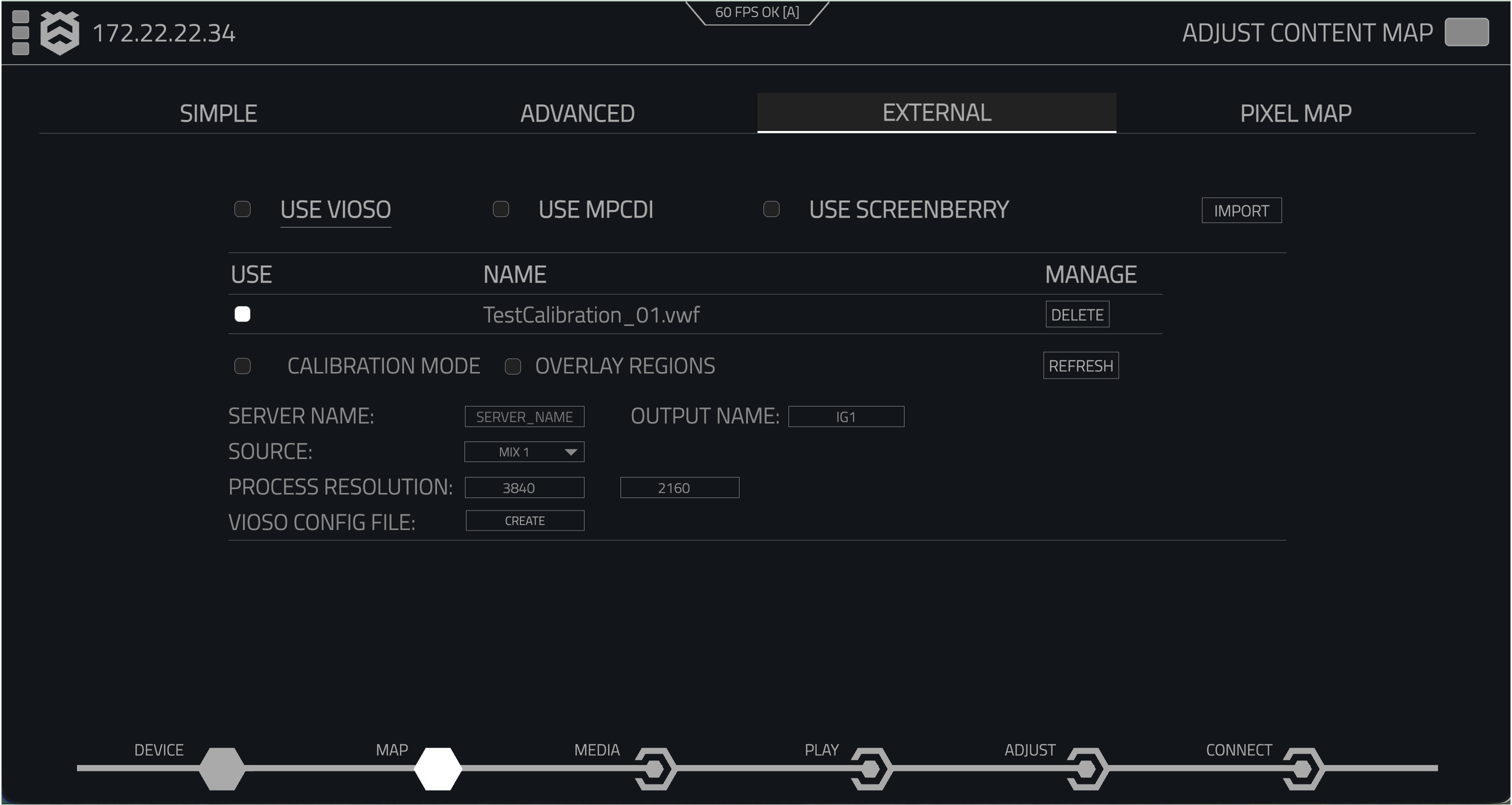
External Mapping is designed to provide the connection between an external calibration workflow and playback on the Player.
The projector calibration itself is created using the external calibration software. Once the calibration has been completed, the resulting calibration data can be imported and configured from the External tab.
This guide covers the configuration required on the Player.
For information about creating, adjusting or exporting a calibration, refer to the documentation provided by the calibration software manufacturer.
External Mapping Workflow
Although the exact calibration process varies depending on the system being used, the general workflow is:
- Configure the projectors and calibration system.
- Create the projector calibration using the external calibration software.
- Export the required calibration data.
- Open Map → External on the Player.
- Select the required external mapping system.
- Import the calibration data.
- Select the calibration to use.
- Configure the required source and processing settings.
- Verify the calibrated output.
The settings displayed on the External Mapping page change depending on the selected calibration system.
Selecting a Calibration System
At the top of the External Mapping page, select the calibration system you want to use.
The available options are:
| Option | Description |
|---|---|
| Use VIOSO | Enables support for VIOSO calibration data. |
| Use MPCDI | Enables support for MPCDI calibration data. |
| Use Screenberry | Enables support for Screenberry calibration data. |
Selecting an option changes the controls displayed on the External Mapping page to those required by that calibration system.
Only enable the external mapping system required by the current configuration.
Using Vioso
VIOSO
Select Use VIOSO to configure the Player for use with VIOSO calibration data.
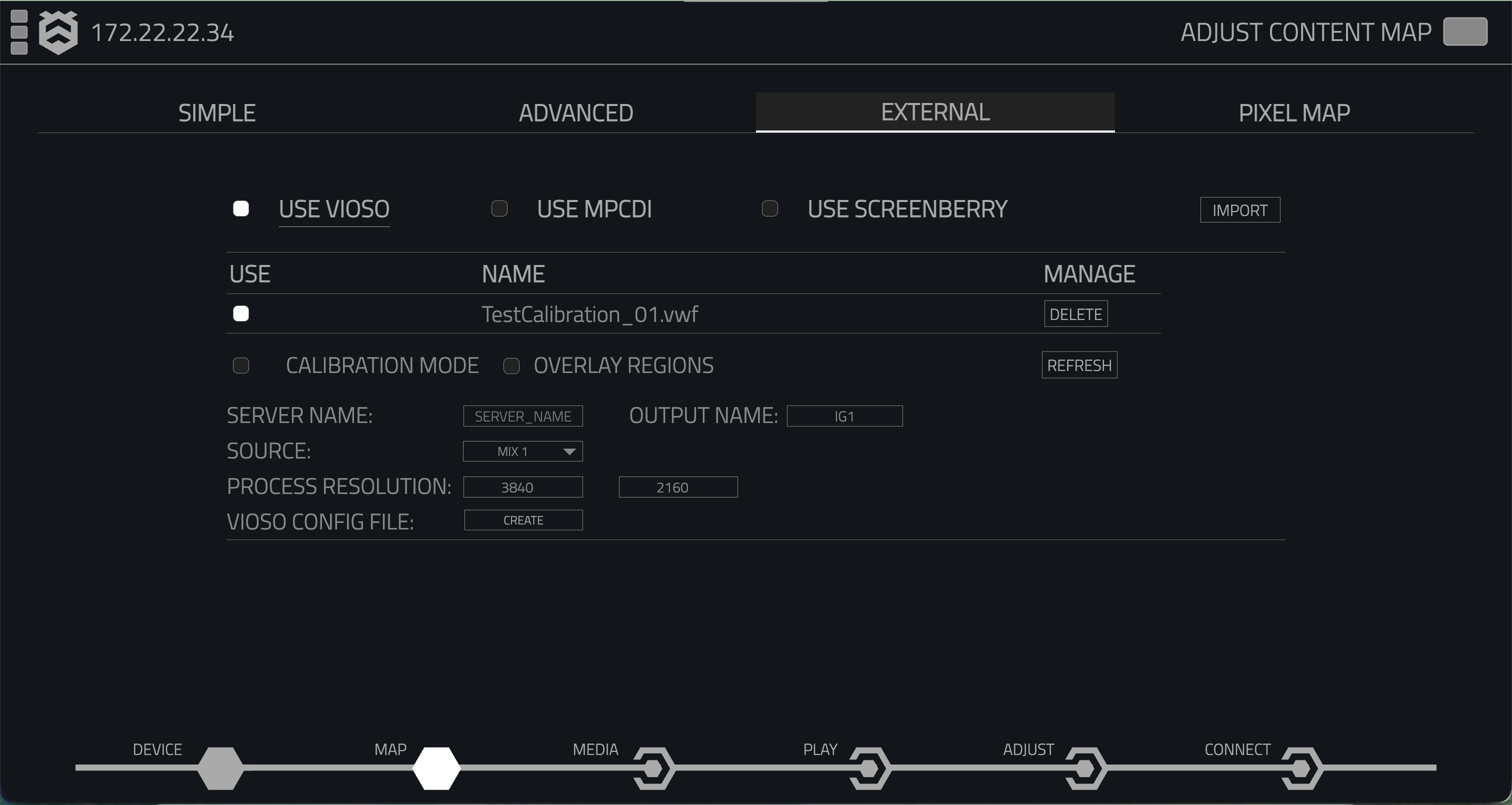
A VIOSO calibration should first be created using the appropriate VIOSO calibration software.
Once the calibration has been completed, the calibration data can be imported into the Player.
For information about creating and exporting calibrations using VIOSO software, refer to the official VIOSO documentation.
Calibrations
The calibrations list displays all the available Vioso mapping files that have been uploaded to the Hive player. Simply check the box next to the desired calibration file to activate it. This will align the projection based on the specific calibration settings.

Importing a VIOSO Calibration
To import a VIOSO calibration:
- Open Map → External.
- Enable Use VIOSO.
- Select Import.
- Select the required VIOSO calibration file.
- The imported calibration will appear in the calibration list.
- Enable Use beside the calibration you want to apply.
For example:
TestCalibration_01.vwf
The selected calibration will then be used when processing the configured source.
Managing VIOSO Calibrations
Imported VIOSO calibrations are displayed in the calibration list.
| Control | Description |
|---|---|
| Use | Selects the calibration that will be used. |
| Name | Displays the name of the imported calibration. |
| Delete | Removes the calibration from the Player. |
| Refresh | Refreshes the available calibration information. |
VIOSO Settings
When Use VIOSO is enabled, the following settings are available.
| Setting | Description |
|---|---|
| Calibration Mode | Enables calibration mode for use during the calibration workflow. |
| Overlay Regions | Displays the calibration regions over the output to assist with setup and identification. |
| Server Name | Defines the server name used by the VIOSO configuration. |
| Output Name | Defines the output associated with the calibration. |
| Source | Selects the content source that will be processed by the calibration. |
| Process Resolution | Defines the resolution used when processing the calibrated output. |
| VIOSO Config File | Creates the configuration file required for the VIOSO workflow. |
Source
The Source control determines which Player source is passed through the external calibration.
For example:
MIX 1
This allows content configured using the Layer Manager to be processed by the external mapping calibration.
Select the required source from the Source dropdown before applying the calibration.
Configure the required Layers and Mixes in Advanced Mapping → Layer Manager before selecting the source for External Mapping.
VIOSO Config File
The VIOSO Config File control allows a configuration file to be created for use with the VIOSO workflow.
Select Create to generate the configuration file using the current External Mapping configuration.
The configuration and calibration process performed within VIOSO is outside the scope of this guide.
Refer to the VIOSO documentation for information about configuring and performing the projector calibration.
MPCDI
Select Use MPCDI to import and use calibration data in the MPCDI format.
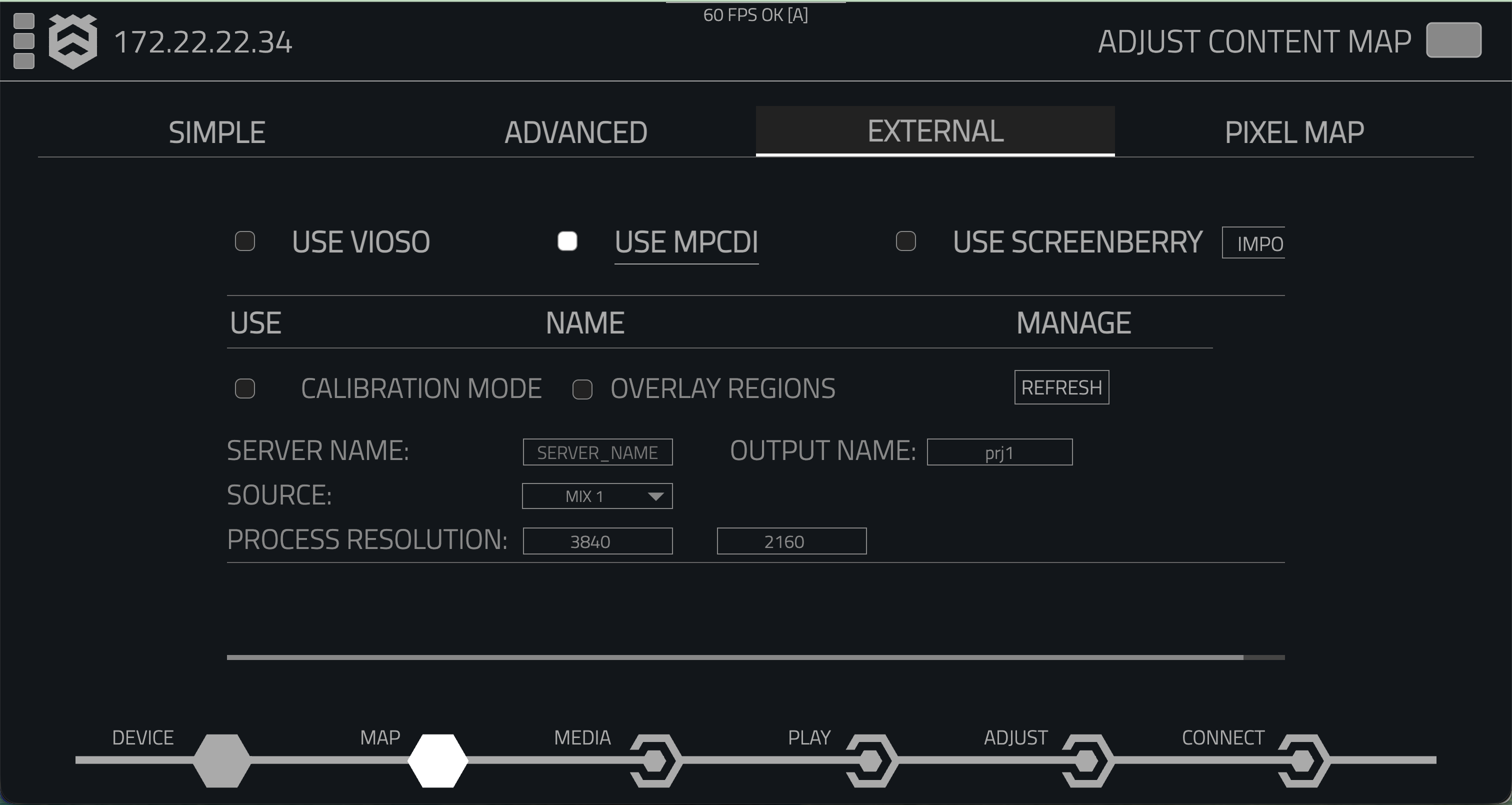
MPCDI provides a standardised format for transferring projection mapping and calibration data between compatible systems.
This allows calibration data generated by compatible external systems to be imported and used without requiring a calibration workflow specific to VIOSO or Screenberry.
Importing an MPCDI Calibration
To import an MPCDI calibration:
- Open Map → External.
- Enable Use MPCDI.
- Select Import.
- Select the required MPCDI calibration file.
- The imported calibration will appear in the calibration list.
- Enable Use beside the calibration you want to apply.
- Select the required Source.
- Confirm the required Process Resolution.
The calibration data will then be applied to the selected source.
MPCDI Settings
When Use MPCDI is enabled, the External Mapping interface displays the settings required for the MPCDI workflow.
| Setting | Description |
|---|---|
| Calibration Mode | Enables calibration mode for use during setup and calibration. |
| Overlay Regions | Displays Hive regions over the mpcdi calibration output. |
| Server Name | Defines the server associated for calibration mode. |
| Output Name | Defines the output assicoted for calibration mode. |
| Source | Selects the Player source that will be processed by the calibration. |
| Process Resolution | Defines the resolution used when processing the calibrated output. |
The Output Name should correspond to the required output contained within the imported MPCDI calibration.
Using Screenberry
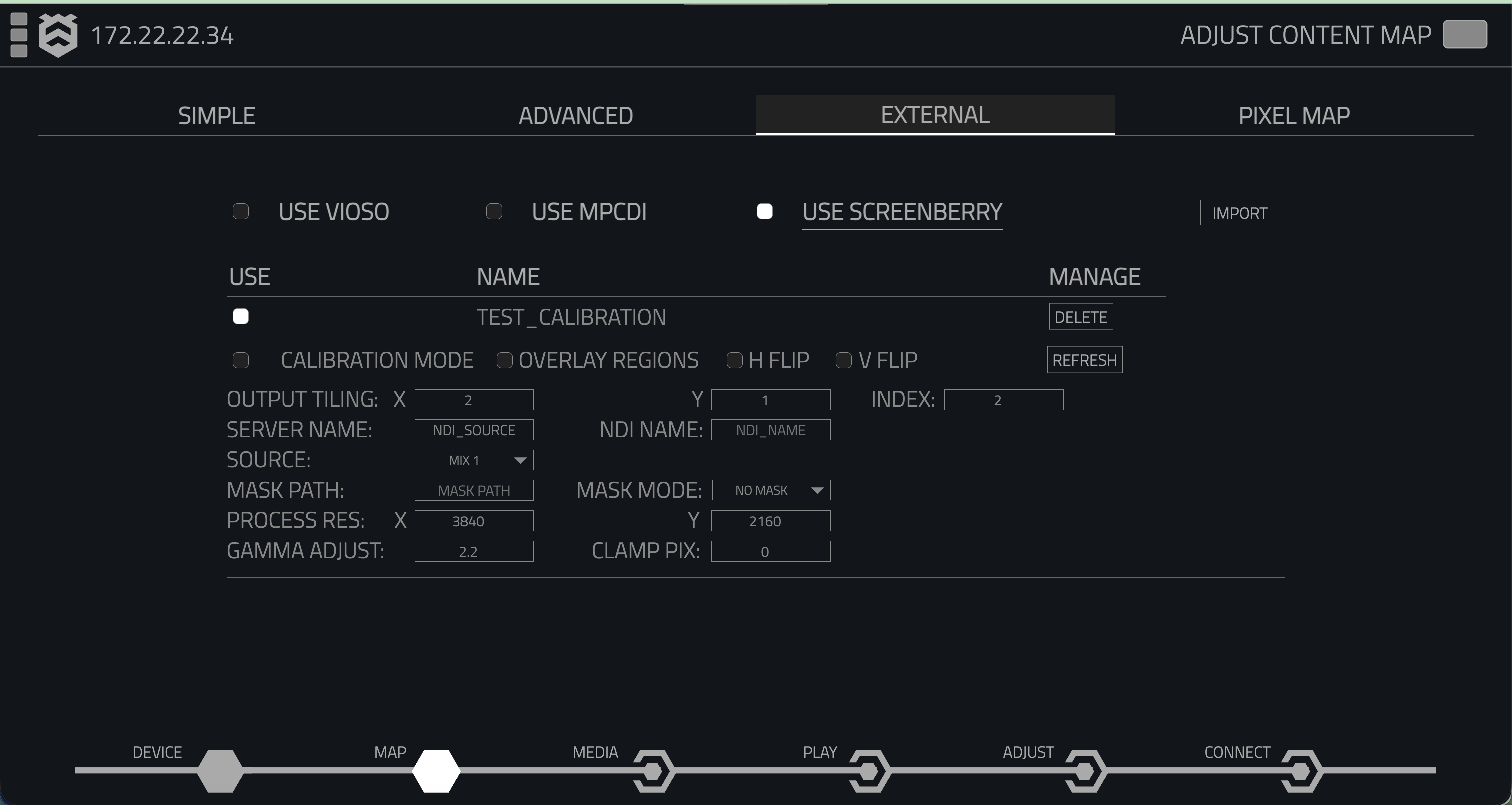
The Screenberry system allows for automatic multi-projector alignment, blending, and warping using camera-based calibration. The Hive player integrates seamlessly with Screenberry to ensure that projections are correctly aligned and displayed.
| Setting | Description |
|---|---|
| Calibration Mode | Enables calibration mode for use during the Screenberry calibration workflow. |
| Overlay Regions | Displays calibration regions over the output. |
| H Flip | Flips the calibrated output horizontally. |
| V Flip | Flips the calibrated output vertically. |
| Output Tiling X | Defines the horizontal position within a tiled output configuration. |
| Output Tiling Y | Defines the vertical position within a tiled output configuration. |
| Index | Defines the output index used by the calibration. |
| Server Name | Defines the server or NDI source used by the Screenberry workflow. |
| NDI Name | Defines the NDI output associated with the calibration. |
| Source | Selects the Player source that will be processed by the calibration. |
| Mask Path | Defines the path used for an external mask. |
| Mask Mode | Determines how the configured mask is applied. |
| Process Res. | Defines the resolution used when processing the calibrated output. |
| Gamma Adjust | Adjusts the gamma applied to the calibrated output. |
| Clamp Pix | Applies pixel clamping to the calibrated output. |
Output Tiling
Output Tiling allows the Screenberry calibration to identify the Player's position within a larger multi-output configuration.
The tiling position is configured using:
- X — horizontal tile position.
- Y — vertical tile position.
- Index — identifies the required output within the calibration.
These values should match the configuration used when creating the Screenberry calibration.
Flipping the Output
The Screenberry workflow provides independent horizontal and vertical flip controls.
H Flip
Enable H Flip to horizontally mirror the calibrated output.
V Flip
Enable V Flip to vertically mirror the calibrated output.
These controls can be useful when the physical projector orientation requires the calibration output to be reversed.
Masks
Screenberry configurations can include additional masking controls.
Mask Path
The Mask Path defines the location of the mask used by the configuration.
Mask Mode
The Mask Mode determines how the mask is applied.
If no external mask is required, select:
NO MASK
Process Resolution
The Process Resolution defines the resolution at which the external calibration is processed.
For example:
3840 × 2160
The configured processing resolution should match the requirements of the calibration and output workflow.
Increasing the Process Resolution increases the number of pixels that must be processed and may increase the processing load on the Player.
Calibration Mode
Calibration Mode is available within the supported external mapping workflows and is intended for use while creating or configuring a calibration.
When enabled, the Player can provide the output required by the external calibration system during the calibration process.
Once calibration has been completed, disable Calibration Mode to return to normal playback.
Overlay Regions
Enable Overlay Regions to display the calibration regions over the output.
This can help identify which calibration region or output is being configured when working with multiple projectors or outputs.
Disable Overlay Regions once the configuration has been verified.
Using External Mapping with Multiple Players
External Mapping can be used across installations containing multiple Players.
Each Player should be configured with the calibration data and output information corresponding to the projector or display connected to that Player.
Where a calibration contains multiple outputs, ensure the correct output is selected or configured for each Player.
Give outputs clear and consistent names within the external calibration system. This makes it significantly easier to identify the correct output when configuring multiple Players.
External Calibration Software
The External Mapping page controls how externally generated calibration data is used by the Player.
The creation of the calibration itself should be completed using the appropriate external calibration software.
VIOSO
Use the official VIOSO documentation for information about:
- Camera setup
- Projector calibration
- Warping
- Blending
- Calibration adjustment
- Exporting calibration data
Screenberry
Use the official Screenberry User Guide for information about:
- Camera setup
- Automatic calibration
- Projector configuration
- Geometry calibration
- Edge blending
- Calibration adjustment
- Exporting calibration data
Open the Screenberry User Guide
Open the Screenberry Calibration Guide
External calibration software and its workflows may change independently of the Player software.
Always refer to the calibration software manufacturer's current documentation when creating or modifying a calibration.
Troubleshooting
If an imported calibration is not producing the expected output, check the following:
- The correct external mapping system is enabled.
- The correct calibration is selected under Use.
- The correct Source is selected.
- The correct output or output name has been configured.
- The Process Resolution matches the intended calibration workflow.
- The calibration was exported correctly from the external calibration system.
- The correct calibration output has been assigned to the Player.
- Horizontal or vertical flipping is configured correctly where required.
- Screenberry tiling and index settings match the calibration configuration.
If the calibration itself appears incorrect, verify the calibration within the original calibration software before changing the External Mapping configuration.