simple-mapping
Simple Mapping provides a quick way to resize and position the content map within the Player's video output. When the Map page is opened, the Simple tab is selected by default.
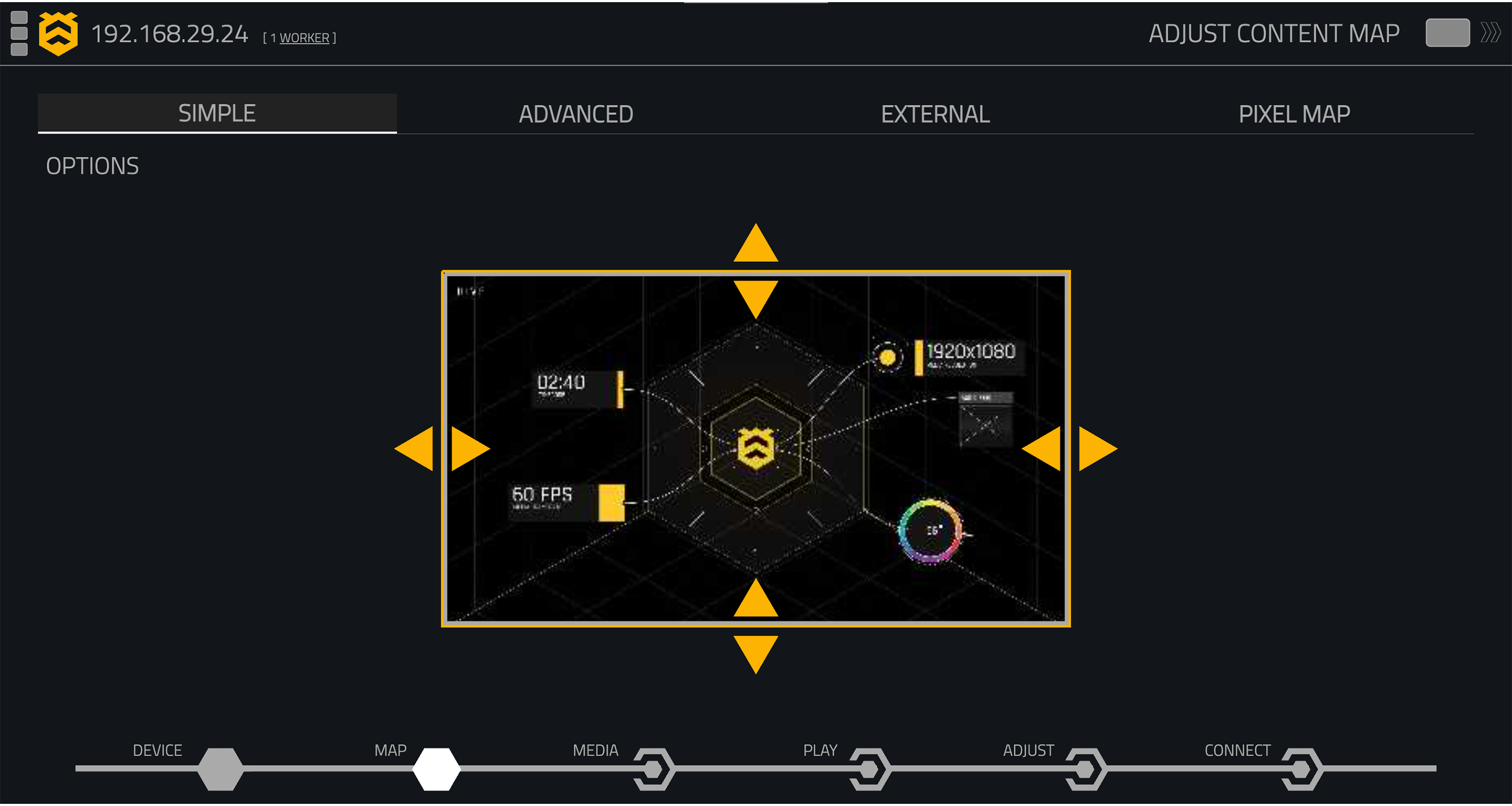
Resizing and Moving
Use the yellow adjustment controls around the content map to resize it horizontally or vertically.
Drag within the content map to reposition it within the video output.
Changes made to the content map are applied to the Player's output in real time.
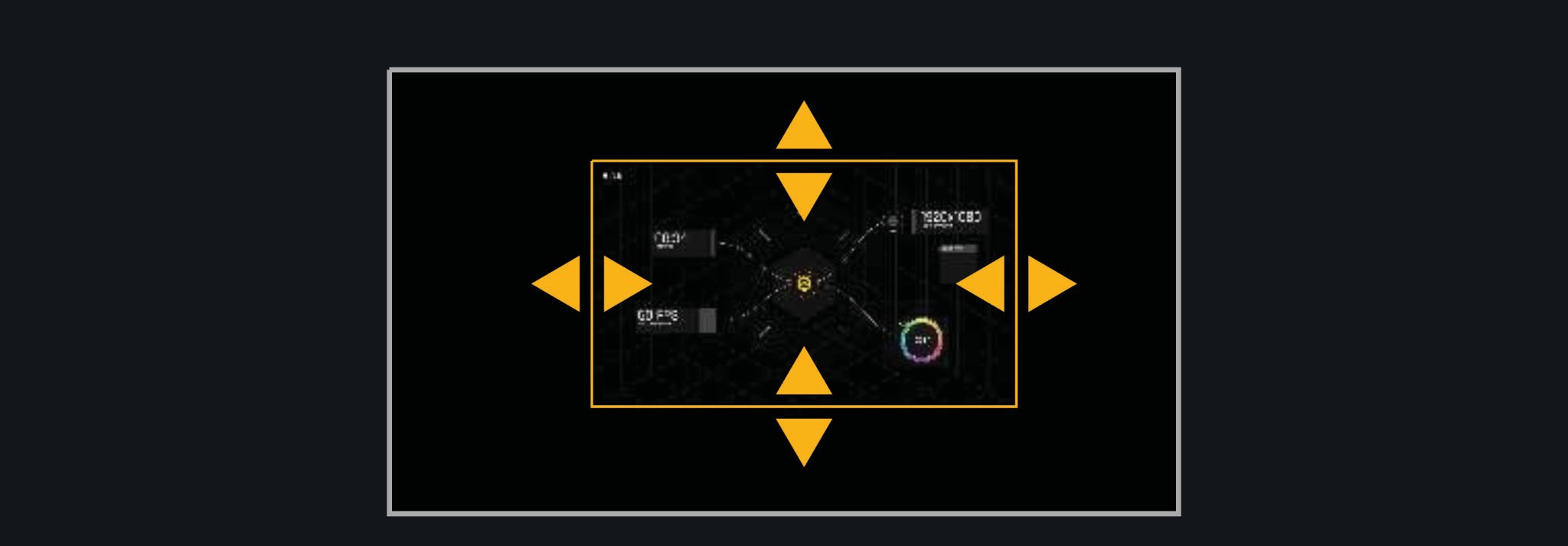
Simple Mapping Options Menu
Hover over OPTIONS in the top-left corner of the Simple Mapping page to reveal additional mapping controls. The Options menu will remain visible while the cursor is positioned over the menu area.
Fill Output Area
This option ensures that the entire video output area is filled, regardless of the selected display mode or output resolution.
Aspect Ratio
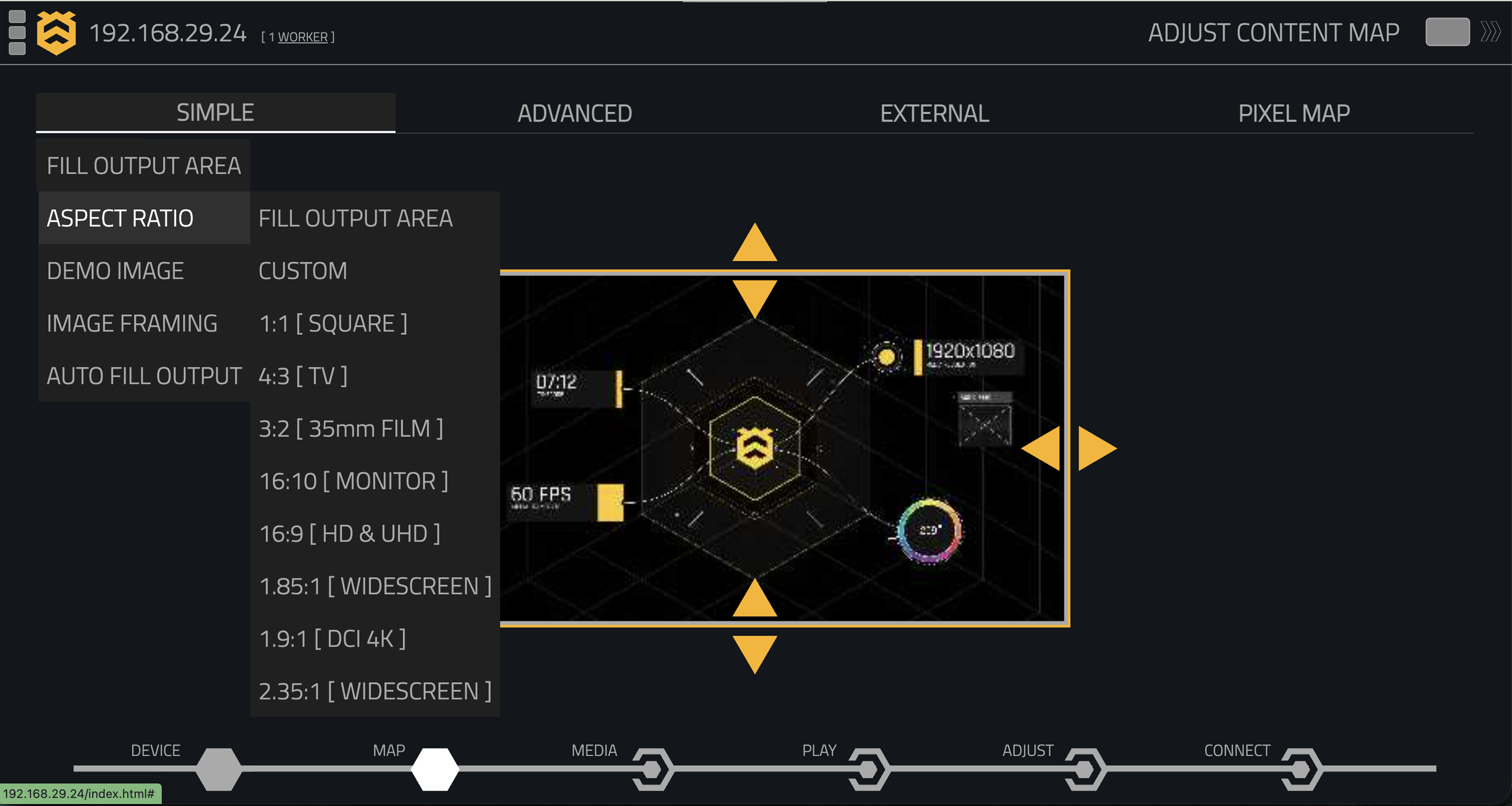
The aspect ratio options provide a selection of common display and content formats. Selecting a preset adjusts the proportions of the content map to the chosen aspect ratio.
The following options are available:
- Custom
- 1:1 [Square]
- 4:3 [TV]
- 3:2 [35mm Film]
- 16:10 [Monitor]
- 16:9 [HD & UHD]
- 1.85:1 [Widescreen]
- 1.9:1 [DCI 4K]
Select Custom when you want to manually adjust the content map without using a predefined aspect ratio.
Image Framing
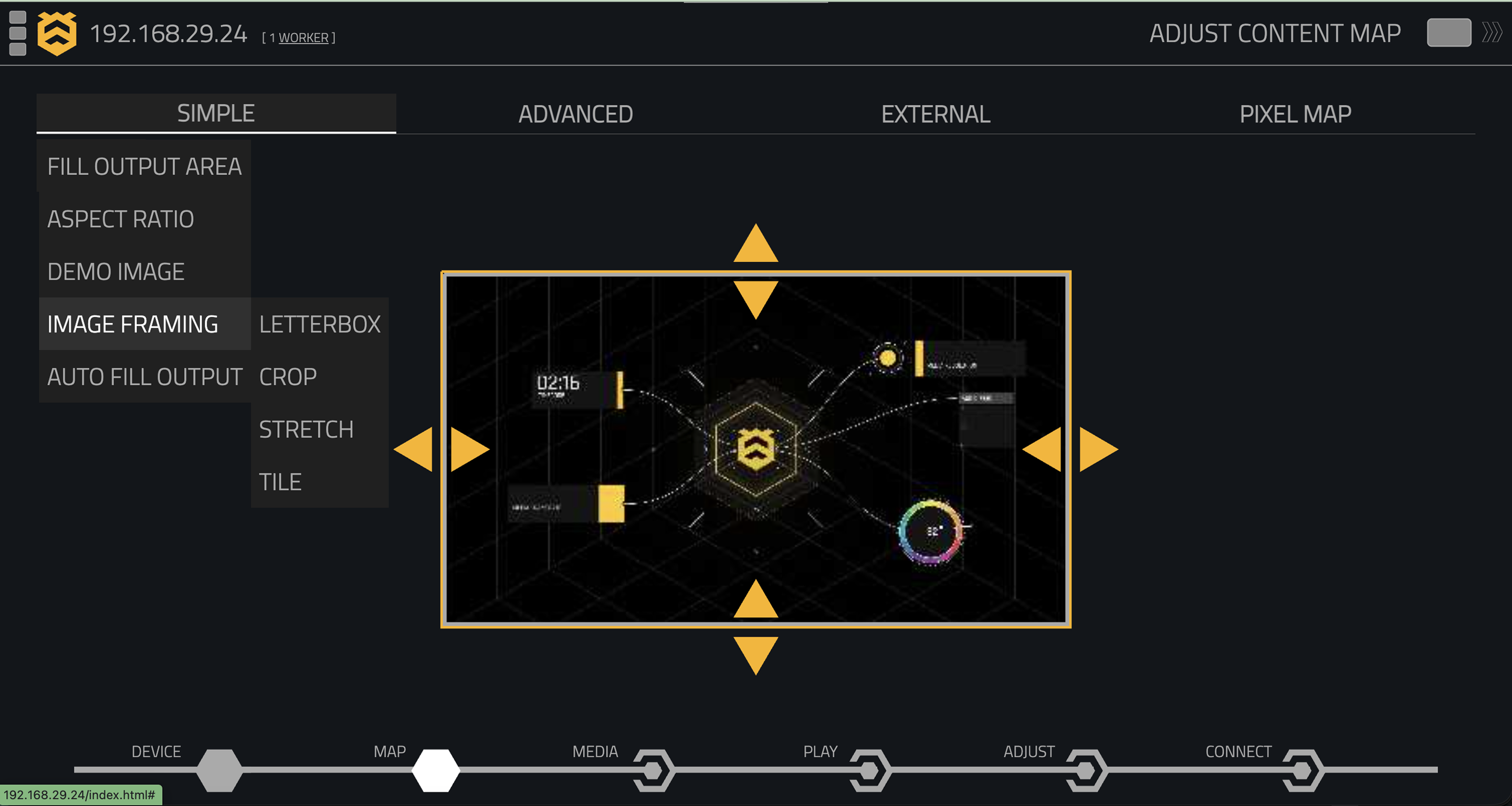
When your video files don’t match the resolution of your output, you need to decide how the videos will be rendered. The following options are available:
- Stretch: Fills the output region by stretching or squeezing the image to fit, which may distort the content.
- Letterbox: Preserves the image’s aspect ratio, adding black borders where necessary.
- Crop: Zooms in on the centre of the image, cutting off excess content around the edges.
- Tile: Repeats the image to fill the available output area.
Demo Images
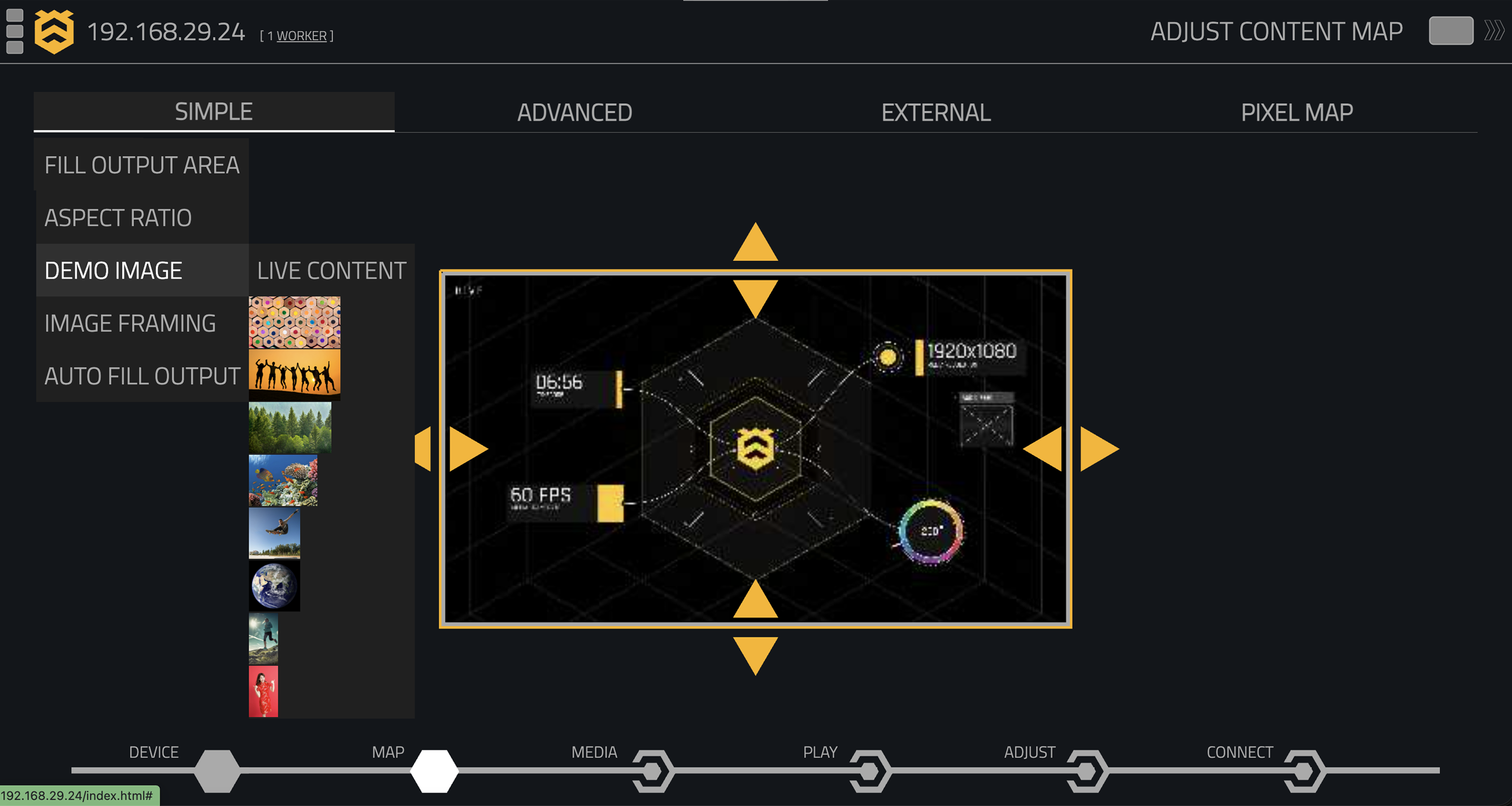
Demo images are available in various aspect ratios on your Hive player, allowing you to experiment with and visualise different mapping configurations.
AUTO FILL Output
Use the AUTO FILL output option to streamline your mapping process. This feature automatically fills the connected display device with the media, optimising output distribution. If you want your video output to always fill the available screen, regardless of display mode, select this option.