The Device page
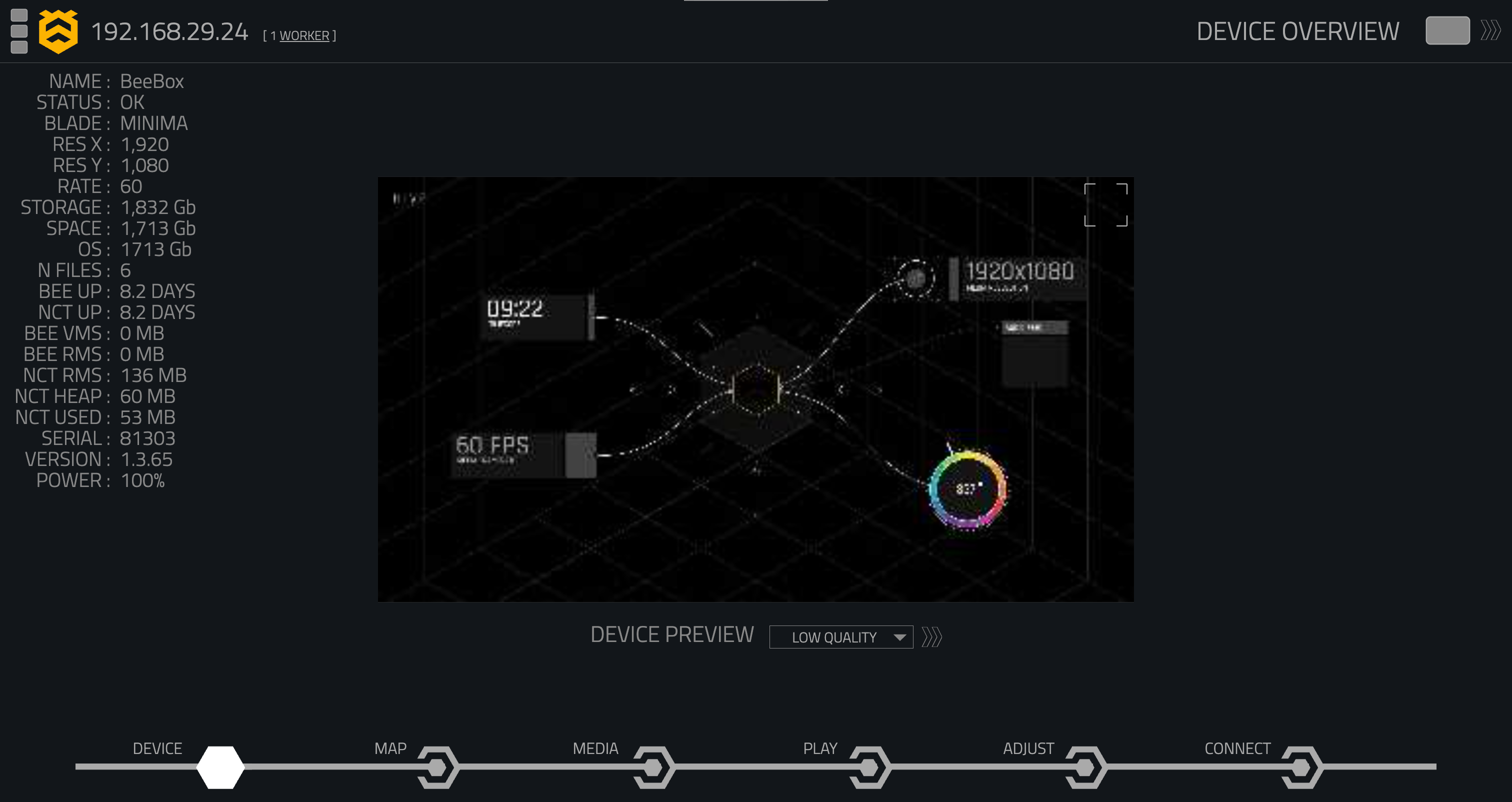
The Device page provides a detailed overview of the Hive Player, including its current operational status, hardware specifications, and key performance metrics.
Device Summary
On the left side, you will find the device information bar displaying key statistics about your Hive Player.
| Item | Description |
|---|---|
| Player Name | The name of your Hive Player (e.g., Beeblade 1) |
| Status | The status of the device (e.g., OK) |
| Blade | The type of BeeBlade you are using (e.g., Pluto) |
| Resolution (X) | The width of your video output resolution (e.g., 1920) |
| Resolution (Y) | The height of your video output resolution (e.g., 1080) |
| Refresh Rate | The refresh rate of the video output (e.g., 60 Hz) |
| Storage | The total storage available (e.g., 3,665 GB) |
| Available Space | The free storage available (e.g., 3,442 GB) |
| Operating System Storage | The storage used by the OS (e.g., 3442 GB) |
| Files | Number of media files stored (e.g., 10 files) |
| Bee Up Time | The time since Hive renderer started (e.g., 41.3 min) |
| NCT Up Time | The time since the web server started (e.g., 41.8 min) |
| Bee VMS Memory | Virtual memory allocated to the Hive renderer |
| Bee RMS Memory | Memory currently used by the Hive renderer |
| NCT RMS Memory | Memory currently used by the Hive web server |
| NCT Heap Size | Total heap memory allocated to the Hive web server |
| NCT Heap Used | Heap memory currently used by the Hive web server |
| Serial Number | Device serial number (e.g., 1426) |
| Firmware Version | Device firmware version (e.g., 1.0.310) |
| Power | Device power status (e.g., 100%) |
Device Status
The Device Status panel provides an at-a-glance view of the current operating status of your Hive Player.
Hover over the top-centre of the interface to temporarily reveal the Device Status panel. Moving the cursor away will hide the panel again.
Click the top-centre of the interface to pin the Device Status panel open, allowing the information to remain visible while using the rest of the interface.
On a standalone Player, the Device Status panel displays information for the individual device. When a Queen has one or more Workers connected, each Player is displayed individually, allowing you to quickly check the status of all devices within the system.
For each Player, the following information is displayed:
| Item | Description |
|---|---|
| Player Name | The name of the Hive Player (e.g., BeeBox) |
| FPS | The current frame rate of the Player (e.g., 60 FPS) |
| BeeSync Status | Displays the current BeeSync status. OK indicates that the Player is synchronised correctly. |
| BeeSync Mode | Displays the current BeeSync mode: [A] Auto, [L] Leader, or [F] Follower. |
| IP Address | Hover over an individual Player within the Device Status panel to display its IP address. |
When multiple Players are connected, the status of each device is shown separately, making it easy to identify differences in frame rate or BeeSync status between the Queen and its Workers.
Queen and Worker Devices
When a Hive Player is configured as a Queen with one or more Workers connected, supported controls can be applied across all connected devices directly from the Queen's interface.
A chevron  will appear next to controls that support multi-device control.
Click the chevron to enable multi-device control for that function. When enabled, the chevron will turn yellow  and changes made to that control will be applied to the Queen and all connected Workers.
For example, enabling multi-device control for the Blackout Button means that selecting Blackout will black out the Queen and all connected Workers, rather than only the Queen.
The chevron will only appear when Workers are connected and the selected function supports multi-device control.
Blackout
The Blackout control, located in the top-right corner, allows you to temporarily disable the video output without powering down the device. This feature is useful for quickly blacking out the screen during presentations or maintenance.
Hive Device Finder
The Hive logo, located in the top-left corner, serves as a shortcut to the 'Find Devices' page. By clicking the logo, you can easily discover other Hive Players connected to your network, allowing for quick device management and configuration.
Device Preview
In the center of the page, you’ll find a low-resolution preview of the video output from your Hive Player. You can adjust the quality level using the 'Device Preview' dropdown menu. The available options are: Disabled, Low Quality, Media Quality, and High Quality.
Note that selecting higher quality settings may impact your device’s performance, especially when it is under heavy load.