SSH Passwordless Access
Overview
For advanced control you might want to access the bolts of the system via ssh. Passwords have been disabled on the Hive devices as these are too brittle and will cause a security risk. Instead you can set your own personal computer up with a key to gain access to the Hive device without needing a password.
This feature is only available in version 1.3.14 and higher.
Setup
In order to setup access for your device. You will need to access a Hive device on the network in a browser by going to the ip. You will need to then go to the ADJUST page and under DEVICE COMMANDS select SETUP SSH ACCESS. This will take you to a dedicated page that will help you setup and manage access to this specific Hive device.
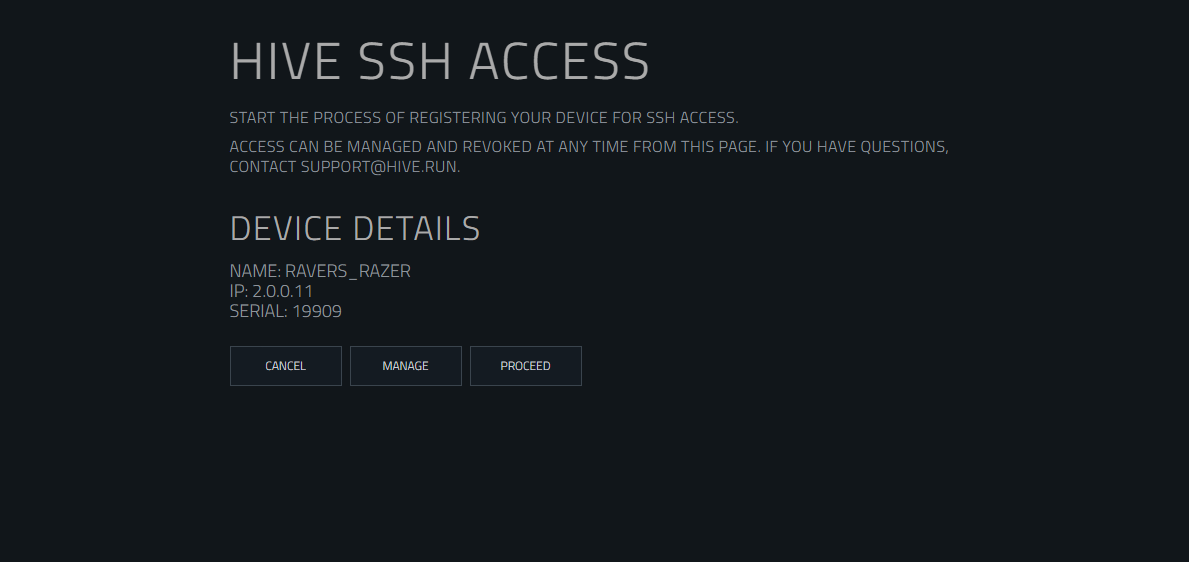
Here you have 3 options available:
- Cancel - Takes you back to the main Hive interface.
- Manage - Let's you see what devices have been registed and revoke access if desired.
- Proceed - Walks you through setting up access on your current device.
Operating System Dection
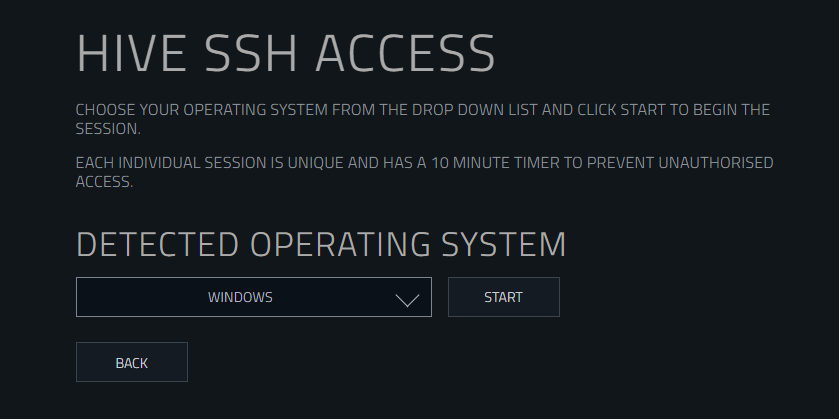
The first part in setting your system up is to make sure that the operating system has been detected and selected correctly. The system will try to automatically detect your system, but in case there's a mistake you can change that manually in the drop down provided. It is important to select the correct Operating System here as there are different setups based on the System. Once you are happy press START to create a session.
Sessions
Once you have started a session, you will have 10 minutes to register your device. There will be a timer indicating how long you have left to complete the session.
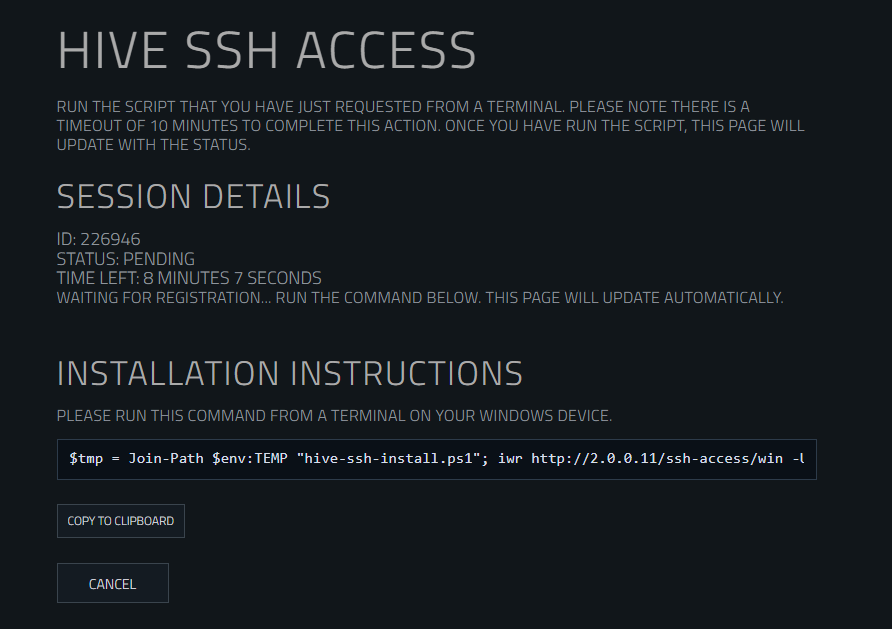
In order to do this you will need to open a terminal on your computer. On OSX this is a terminal application and on Windows this is a powershell application. Press the COPY TO CLIPBOARD button to copt the terminal command. Then in your terminal paste that command and press enter.
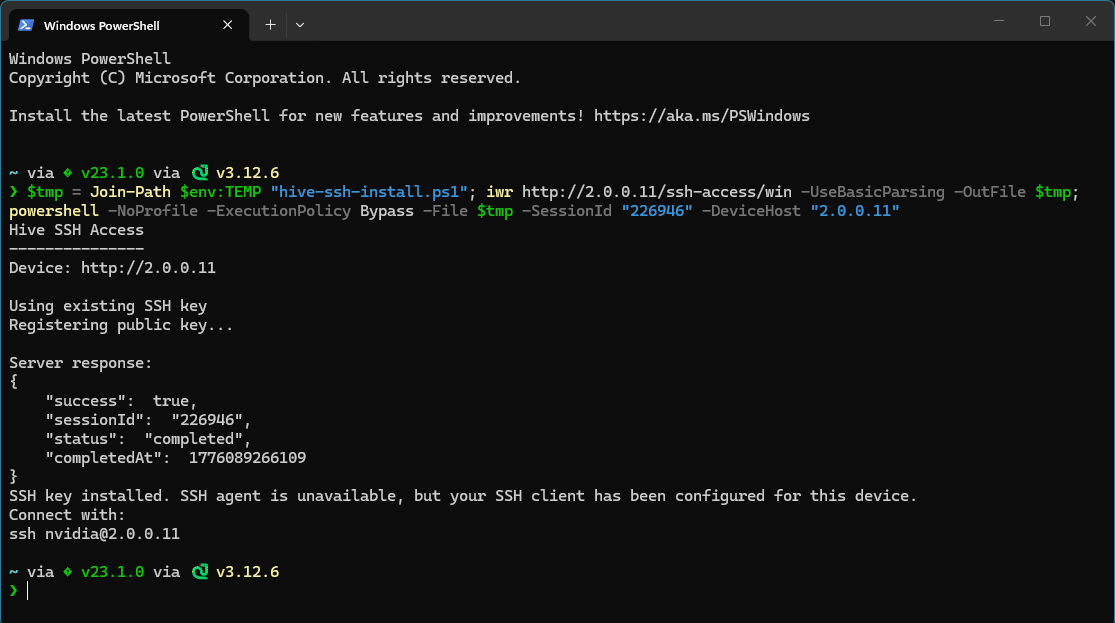
Once completed you will see some text in the terminal, if successful then it will say you can connect.

Now that you are setup, you can ssh into a device without the need of a password. This can be achieved by typing ssh nvidia@x.y.z.w in your terminal application.
Managing Access
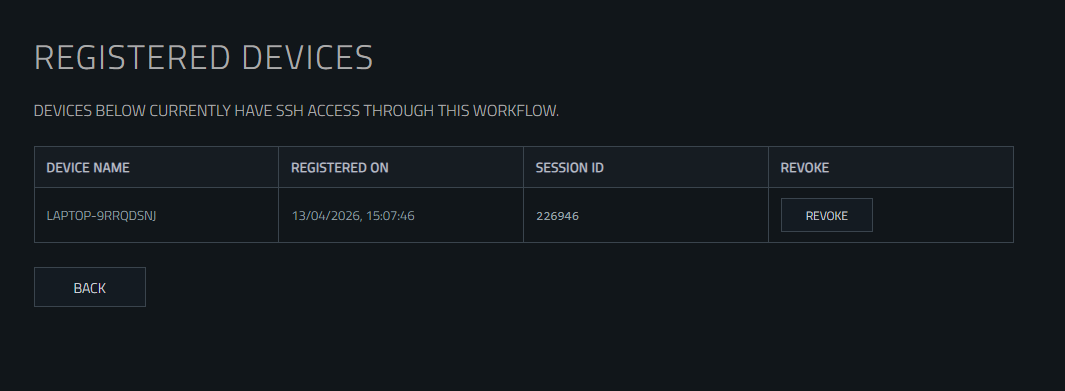
You can check what computers have access to your hive device via the MANAGE button. Here you will see a table showing you the devices that have been registed.
If you want to revoke access for a specific device, then you can press the REVOKE button in the table to do that. A confirmation dialog will pop up that will need to be confirmed to revoke access. Once revoked, the device that was previously registered will no longer have access.
Devices can be revoked even if they are not on the network or connected to the Hive device.