Beeblade Nexus SMPTE 2110 Setup & Workflow Guide
First-Time Users
This guide explains how to configure your Hive media server to send and receive SMPTE ST 2110 video streams, what each setting does, and how to build a reliable ST 2110 network for the first time. It assumes no prior ST 2110 experience.
At least one Hive Beeblade Nexus board & a Hive build from v1.2.99 or above.
What is SMPTE ST 2110? (Quick primer)
SMPTE ST 2110 is a professional broadcast standard that transports uncompressed video, audio, and ancillary data over IP networks instead of HDMI or SDI cables. Key points:
- Video is uncompressed → extremely low latency and pristine quality
- Uses multicast IP networking
- Requires high-bandwidth networking (10GbE, 25 GbE, 100 GbE)
- Found in broadcast, live events, and LED systems, with more applications inevitable.
When using ST 2110, your Hive player becomes:
- A sender (outputting video to the network)
- A receiver (subscribing to and displaying video streams from the network)
Where ST 2110 Settings Live in Hive
All ST 2110 configuration are done here:
Adjust → Settings → ST2110 Settings
This page contains two tabs:
- Network – IP and NMOS configuration
- Output – Video stream configuration
Network Tab – IP & NMOS Configuration
This tab defines how your Hive device connects to the ST 2110 network.
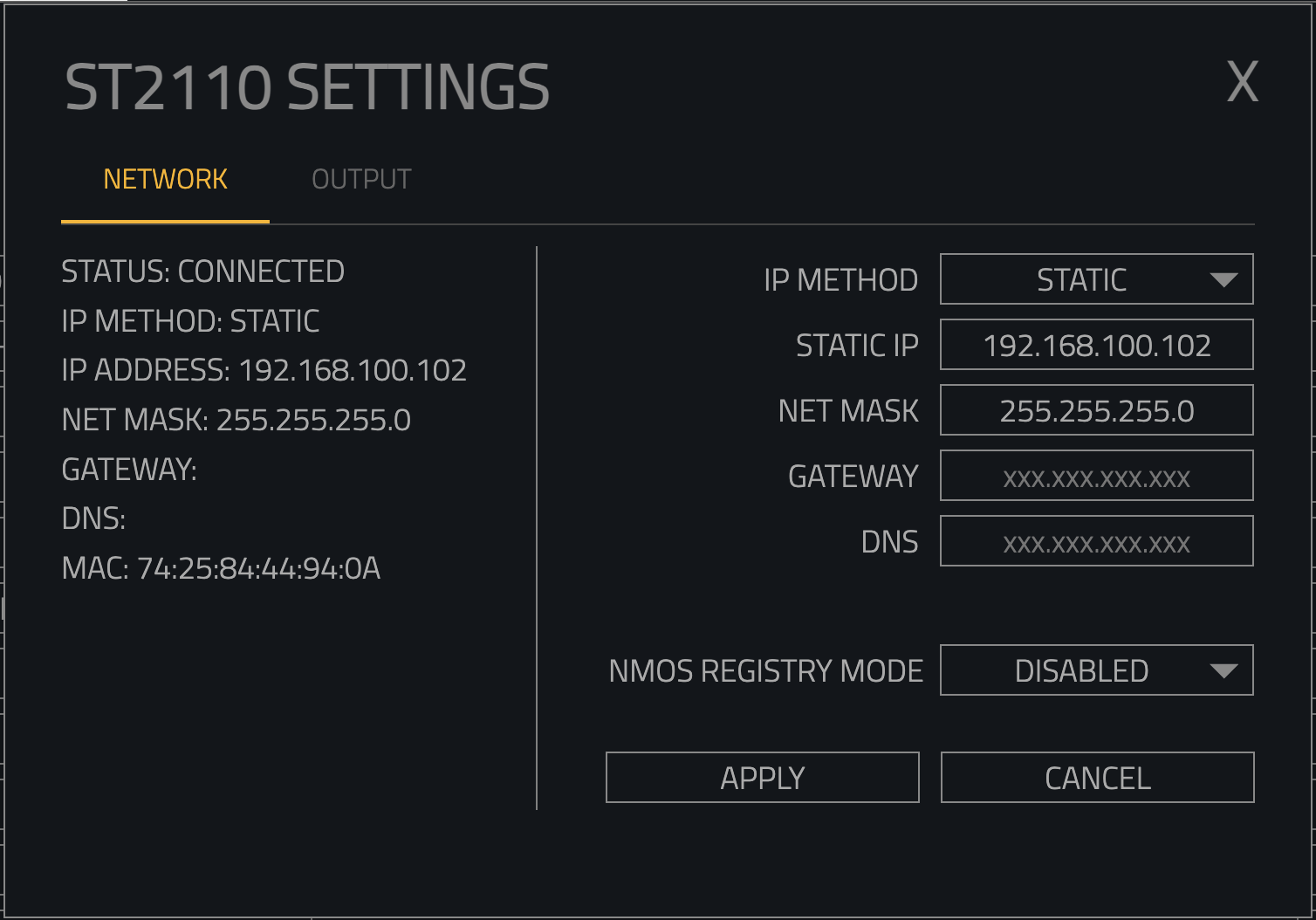
There are two IP Methods available:
- Static
- DHCP
We recommend static addressing for ST 2110
Static
You manually define the network address. Use this when:
- Working in broadcast or fixed installations
- Using multicast
- You want predictable, repeatable behaviour
DHCP
The network automatically assigns an IP address. Use this only if:
- Your network is specifically designed for DHCP
- You understand how multicast and NMOS are handled
Static IP Settings
| Parameter | What it means |
|---|---|
| Static IP | The device’s IP address on the ST 2110 network |
| Net Mask | Defines the size of the network (e.g. 255.255.255.0) |
| Gateway | Router address (often unused in closed ST 2110 networks) |
| DNS | DNS server (often unused in pure ST 2110 systems) |
Typical ST 2110 systems often do not need Gateway or DNS, but they can be filled in safely if required by your infrastructure.
NMOS Registry Mode
NMOS is a discovery and control system used by ST 2110 devices.
Options
- Disabled
- Static IP
- Auto Discover
Disabled
- No NMOS discovery
- Manual SDP entry required
Static IP
- You manually specify the NMOS registry address
- Useful in controlled environments
When selected, this field appears:
- NMOS Registry IP – IP address of your NMOS registry
Auto Discover
- Device automatically searches for an NMOS registry
- Requires proper multicast/DNS support on the network
Network Buttons
- Apply – Saves and applies settings
- Cancel – Discards changes
- X – Closes the settings page
Output Tab – ST 2110 Video Stream Configuration
This tab defines the video stream your Hive player will transmit.
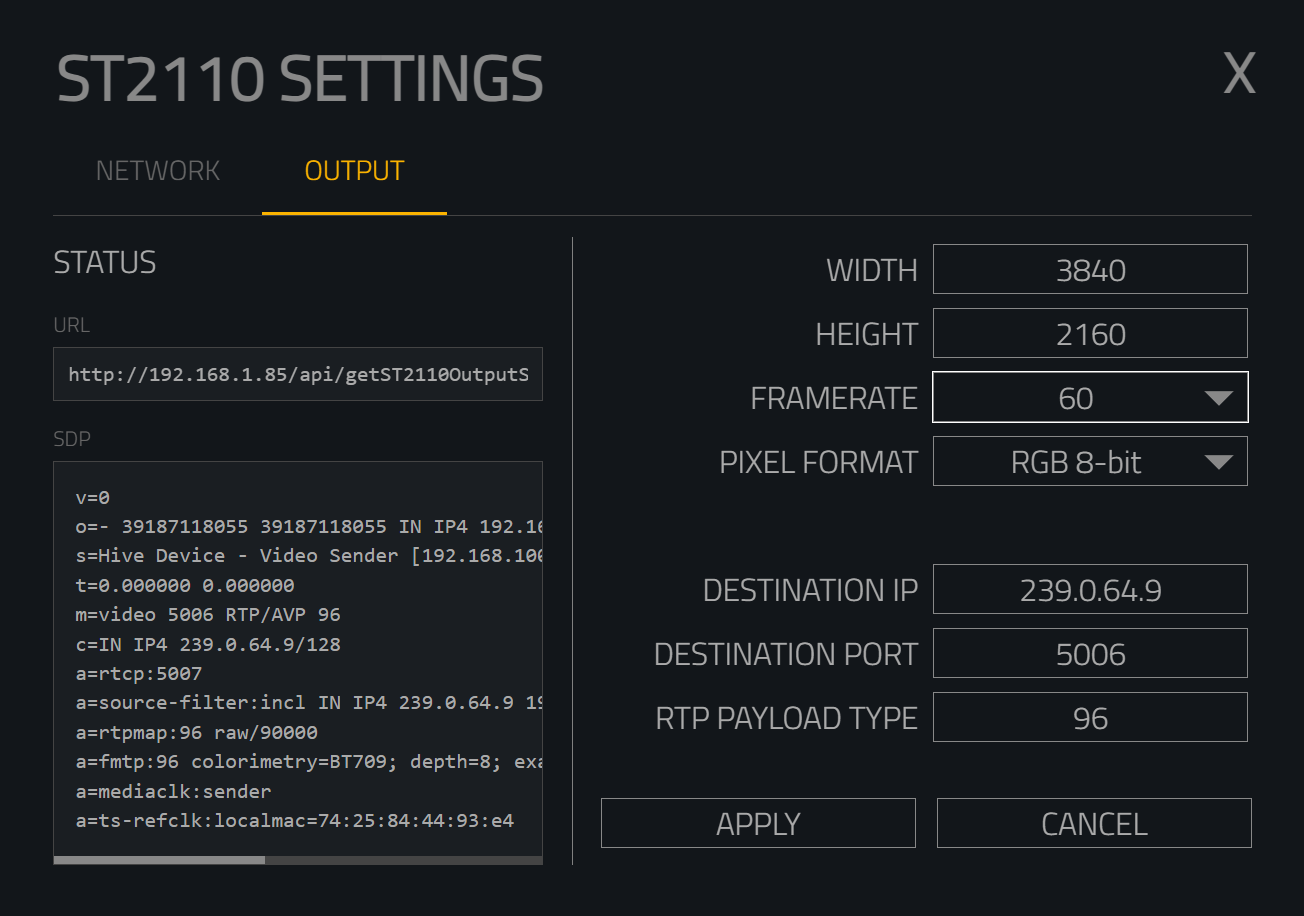
Status
Shows the current ST 2110 output state. This is your first place to check if a stream isn’t behaving as expected.
SDP Information
URL
- Displays the URL of the SDP file describing the stream
- Includes a Copy button for easy sharing
SDP
- Displays the full SDP contents
- Used by receivers to subscribe to the stream
The SDP file is the “instruction manual” describing the video stream.
Video Format Settings
| Parameter | Description |
|---|---|
| Width | Horizontal resolution in pixels |
| Height | Vertical resolution in pixels |
| Frame Rate | Video frame rate (23.98 → 60 fps) |
| Pixel Format | Video colour format and bit depth |
Supported Pixel Formats:
- RGB 8-bit
- RGB 10-bit
- YUV 4:2:2 10-bit
YUV 4:2:2 10-bit is the most commonly supported broadcast format.
Network Stream Settings
| Parameter | Description |
|---|---|
| Destination IP | Multicast address (e.g. 239.0.64.9) |
| Destination Port | UDP port number (e.g. 5006) |
| RTP Payload Type | Usually 96 |
Destination IP
- Almost always a multicast address
- Typically in the 239.x.x.x range
Destination Port
- Identifies the stream on that multicast address
- Multiple streams can share one multicast IP if ports differ
Output Buttons
- Apply – Activates the stream
- Cancel – Discards changes
- X – Closes the page
Enabling ST 2110 Output
This is an important step
Configuring the output does not automatically activate it.
To enable ST 2110 output:
- Go to Adjust → Settings → Video Output Settings
- Set Output Method to ST2110
- Restart the device
This disables HDMI output and outputs video exclusively over ST 2110. You can switch back to HDMI at any time later.
Adding an ST 2110 Input to Hive
To receive an ST 2110 stream:
- Go to the Media page
- Click Choose Input
- Select ST2110 INPUT
You now have two options:
NMOS Mode
- Select your source from the automatically discovered list
- Requires NMOS to be configured correctly
Manual SDP URL Entry
- Paste the SDP URL from the source device
- Works without NMOS
Once added:
- The ST 2110 source behaves like any other media item
- Can be used in:
-
- Media page
-
- Playlists
-
- Timecode cue lists
-
- Any Hive feature that accepts media inputs
Supported Hardware
The supported hardware has been tested at the Hive HQ
Sources & Receivers
- Matrox ConvertIP DSH (25 G)
- Hive Beeblade Nexus (100 G)
Network Switches
- NVIDIA Mellanox SN2100 (16-port 100 G)
- Netgear AV Line
- MikroTik
Fibre Transceivers
- 100G (tested in beeblade nexus)
FS QSFP-SR4-100G IN 100G QSFP28 850m 100m
https://www.fs.com/uk/products/35182.html?attribute=111818&id=4469602 - 25G to 100G adaptors (tested in beeblade nexus)
FS QSFP28 100G to SFP28 25G Ethernet Adapter Converter Module
https://www.fs.com/uk/products/178073.html - 25G (tested in Matrox convert ip DSH and in the supported 25G to 100G adaptors)
FS 25GBASE-SR SFP28 850nm 100m DOM Duplex LC/UPC MMF
https://www.fs.com/uk/products/68000.html
Always ensure transceivers are compatible with your switch.
Fibre Cables
- 100G (tested with beeblade Nexus)
FS 12 Fibers OM4 50/125 Multimode Trunk Cable Connector: MTP®-12 (Female) to MTP@-12 (Female) (TYPE B)
https://www.fs.com/uk/products/69009.html?attribute=6140&id=3946831 - 25G (tested in Matrox convert ip DSH and in the supported 25G to 100G adaptors)
2 Fibers, LC UPC Duplex to LC UPC Duplex, Multimode (OM4), Riser (OFNR), 2.0mm
https://www.fs.com/uk/products/40257.html
Always ensure the cable specifications are checked carefully.
Proven Example Setup
This is very important.
The Problem We Observed
We tested a system with:
- Source 1: Hive Beeblade Nexus (100 G)
- Source 2: Matrox ConvertIP DSH (25 G)
- Receiver: Hive Beeblade Nexus
When each source used:
- Different multicast IPs
-
- 239.0.64.9
-
- 239.0.64.10
We observed:
- Stalls
- Delays
- Failed source switching
- Streams sometimes never appearing
The Fully Working Solution
This is what we recommend.
✔ Use the same multicast IP for all sources
✔ Use different destination ports per source
Example
| Source | Multicast IP | Port |
|---|---|---|
| Source 1 | 239.0.64.9 | 5004 |
| Source 2 | 239.0.64.9 | 5006 |
Result:
- Clean, instant switching
- No stalls
- Reliable operation
This is the configuration we strongly recommend.
Key Points to Remember
- Use Static IPs wherever possible
- Keep ST 2110 networks simple and predictable
- Prefer same multicast address, different ports
- Enable ST 2110 output explicitly in Video Output Settings
- Restart after changing output method
- Use NMOS where available, SDP where necessary