Media Toolbox User Manual
Overview
Media Toolbox is a desktop app for building and running repeatable media workflows with FFmpeg.
You can run quick one-off jobs, create reusable templates, and automate multi-step processing with watch folders.
This manual explains each screen, function, and option with step-by-step instructions. If a feature is not available on your platform, the app will hide or disable it.
Quick Start
- Launch Media Toolbox.
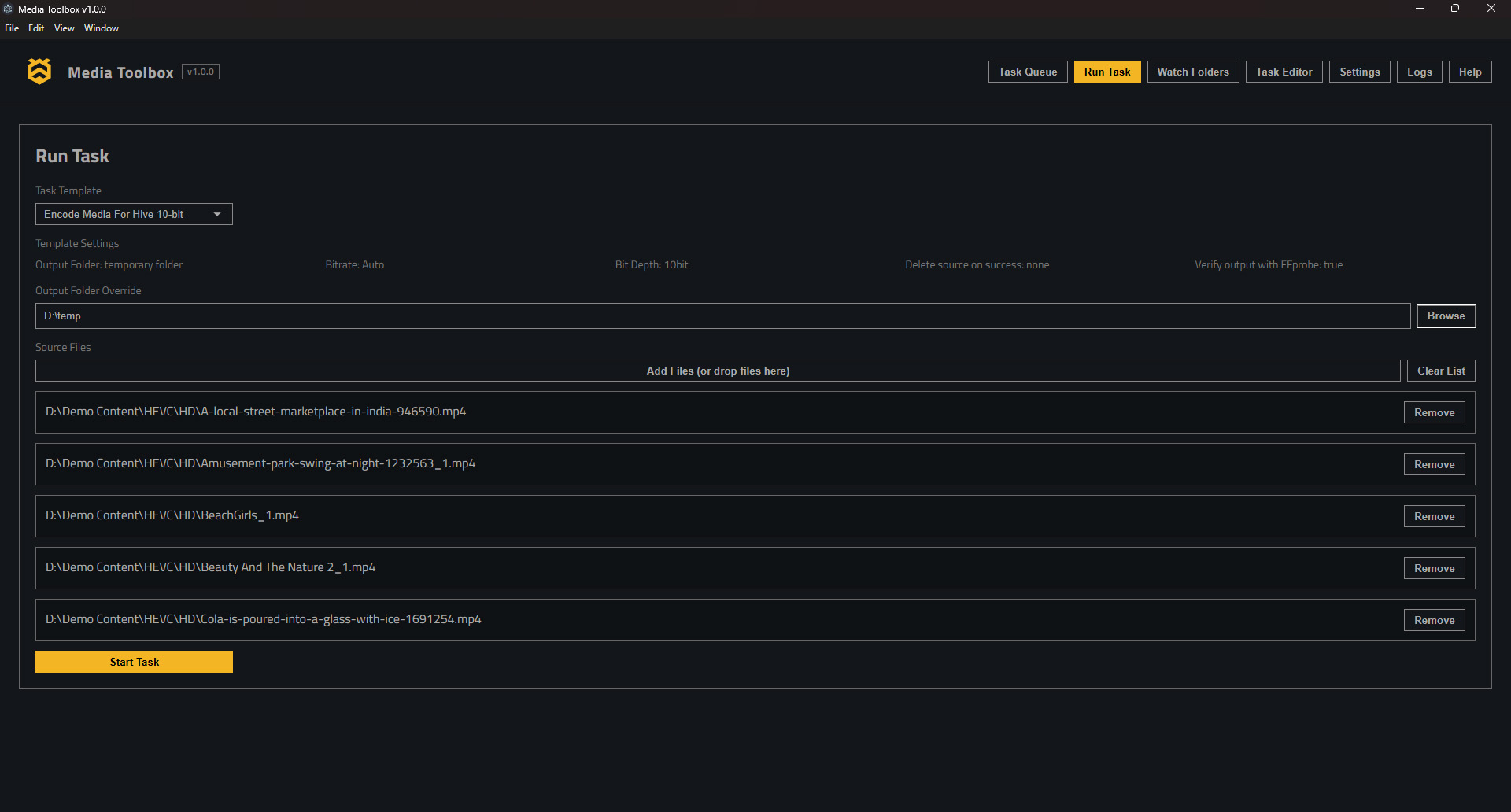
- Go to Tasks.
- In Template, choose a default template (for example, Transcode).
- Click Add Files and select one or more media files.
- If the template requires an output folder, choose one.
- Click Run to queue the tasks.
- Watch progress in the queue. Click a task to view its log and output path.
Quick tips:
- Default templates are a safe starting point.
- You can duplicate a template later to tune settings for your own workflow.
- The Logs view is usually the fastest way to understand any failure.
Interface Tour
Tasks
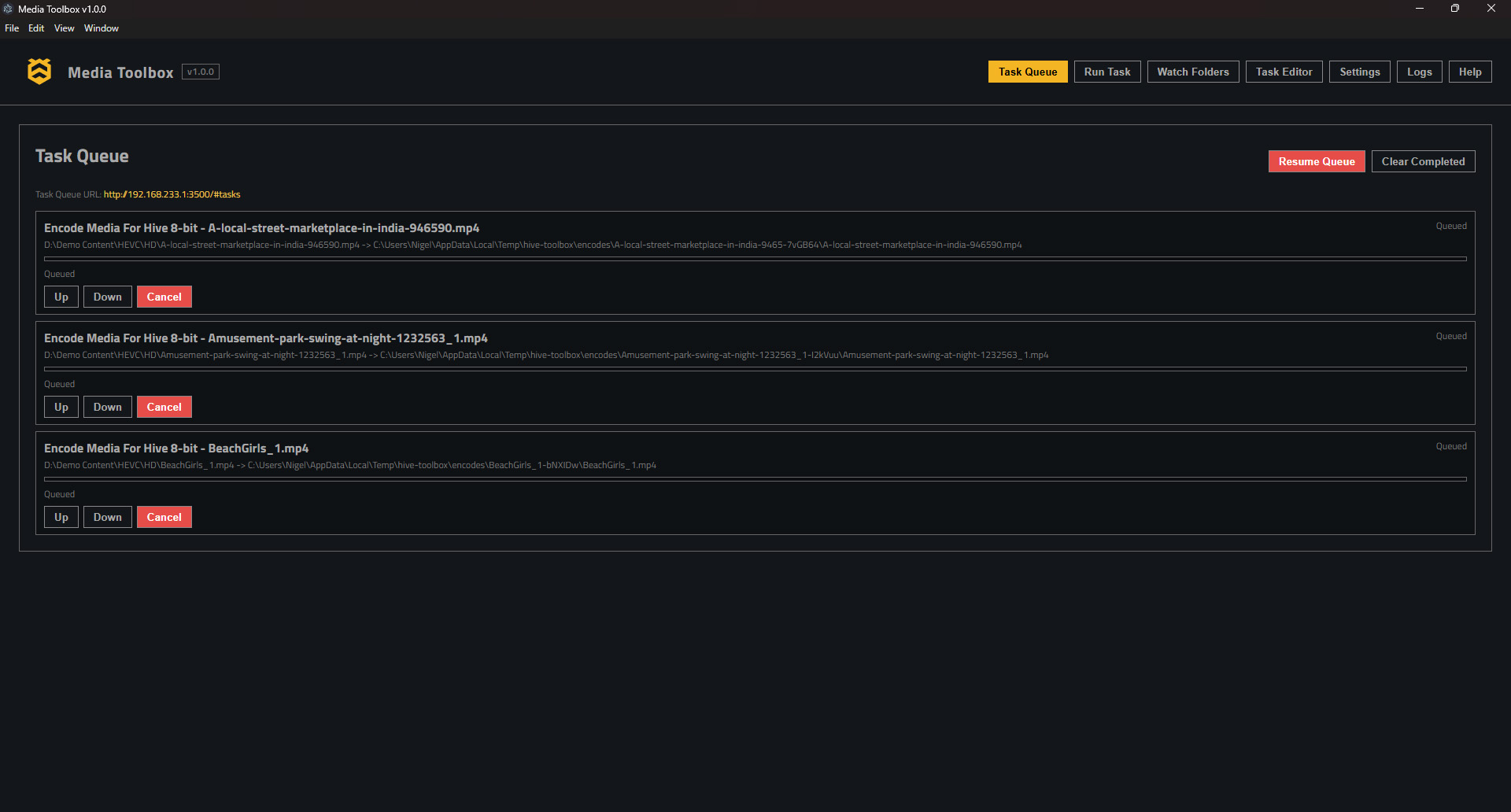
The Tasks screen is your queue and history view.
Common actions:
- Template: Choose which template will be applied to the selected files.
- Add Files: Select input files to create tasks.
- Remove: Remove selected tasks from the queue.
- Up/Down: Reorder queued tasks (does not affect running tasks).
- Run: Queue tasks and start them if Auto Start is enabled.
- Pause Queue: Prevent new tasks from starting.
- Resume Queue: Allow tasks to start.
- Cancel: Stop the currently running task or cancel queued tasks.
- Clear: Remove completed or failed tasks from view.
Queue status:
- Queued: Waiting to start.
- Running: Actively processing.
- Completed: Finished successfully.
- Failed: Finished with errors.
- Canceled: Stopped by user action.
Templates
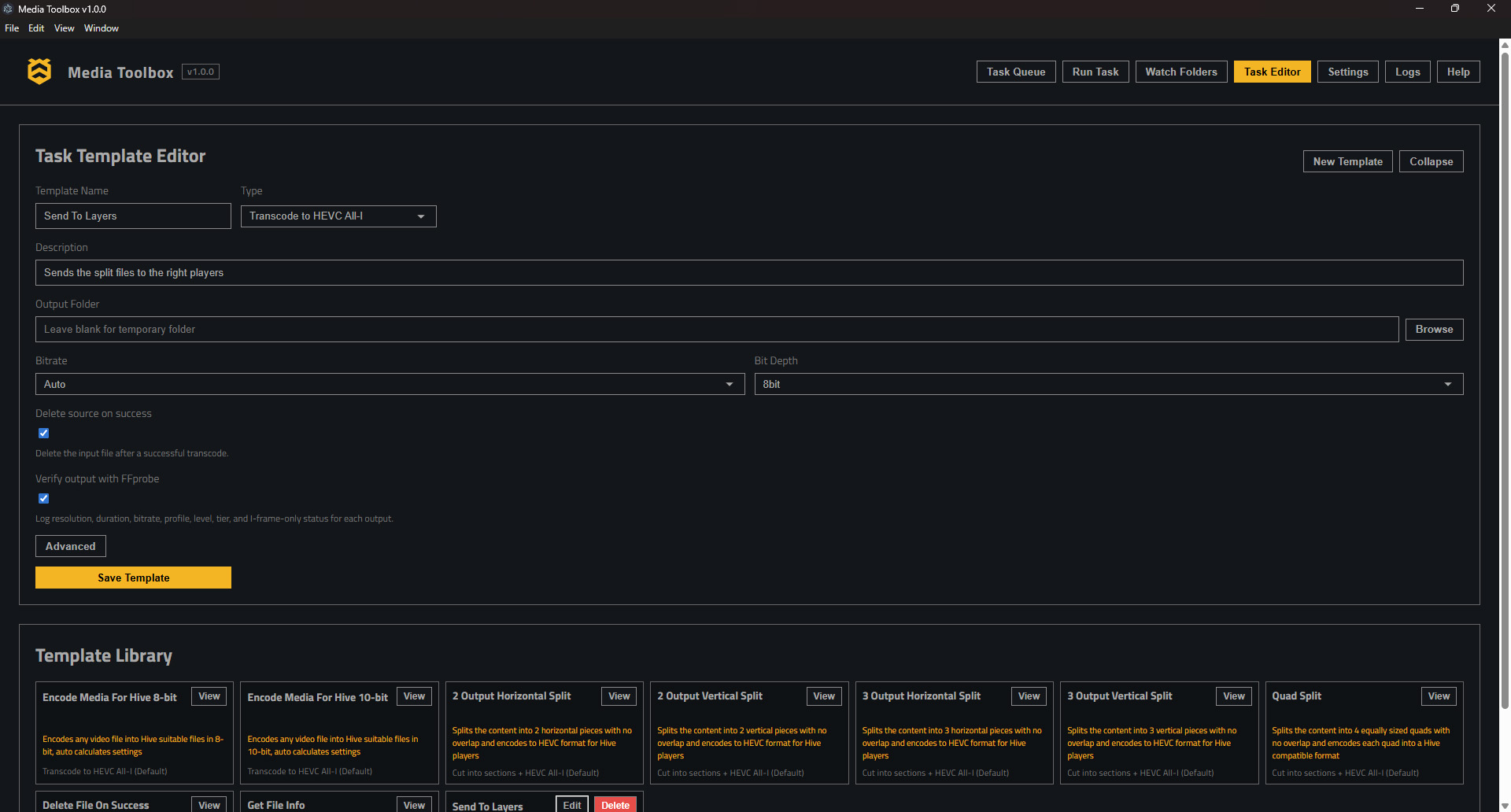
Templates define how tasks run. You can create new templates or clone defaults.
Common actions:
- New Template: Create a template from scratch.
- Duplicate: Copy an existing template as a starting point.
- Edit: Change template options.
- Delete: Remove a custom template.
Notes:
- Default templates are read-only. Duplicate them to customize.
- Advanced FFmpeg arguments are optional and should be used carefully.

Watch Folders
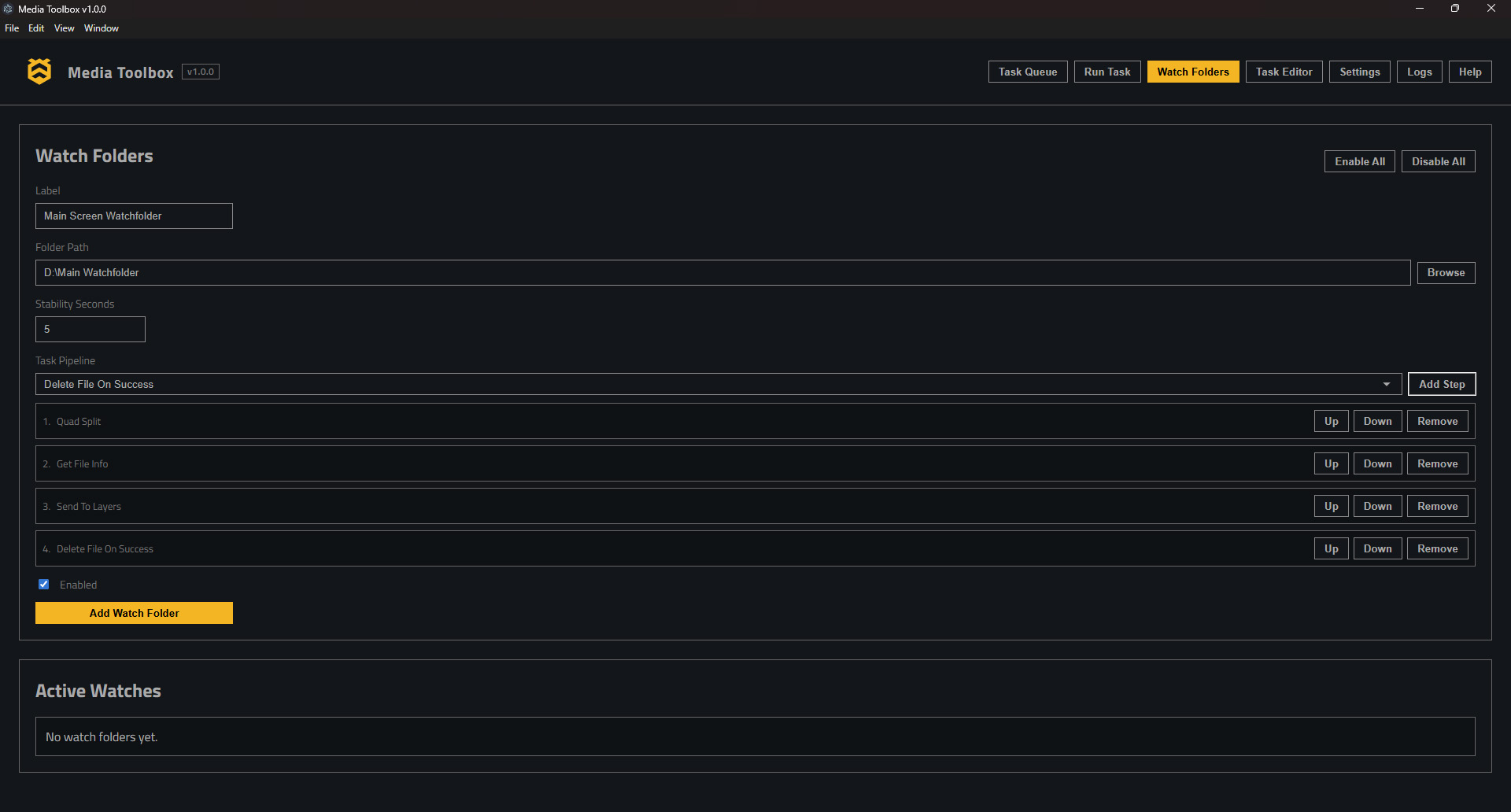
Watch folders automatically trigger pipelines when new files appear.
Common actions:
- New Watch Folder: Create a folder watcher and pipeline.
- Edit: Update the path, pipeline steps, or stability timing.
- Enable/Disable: Toggle individual watch folders on or off.
- Run Now: Manually scan the folder once.
Logs
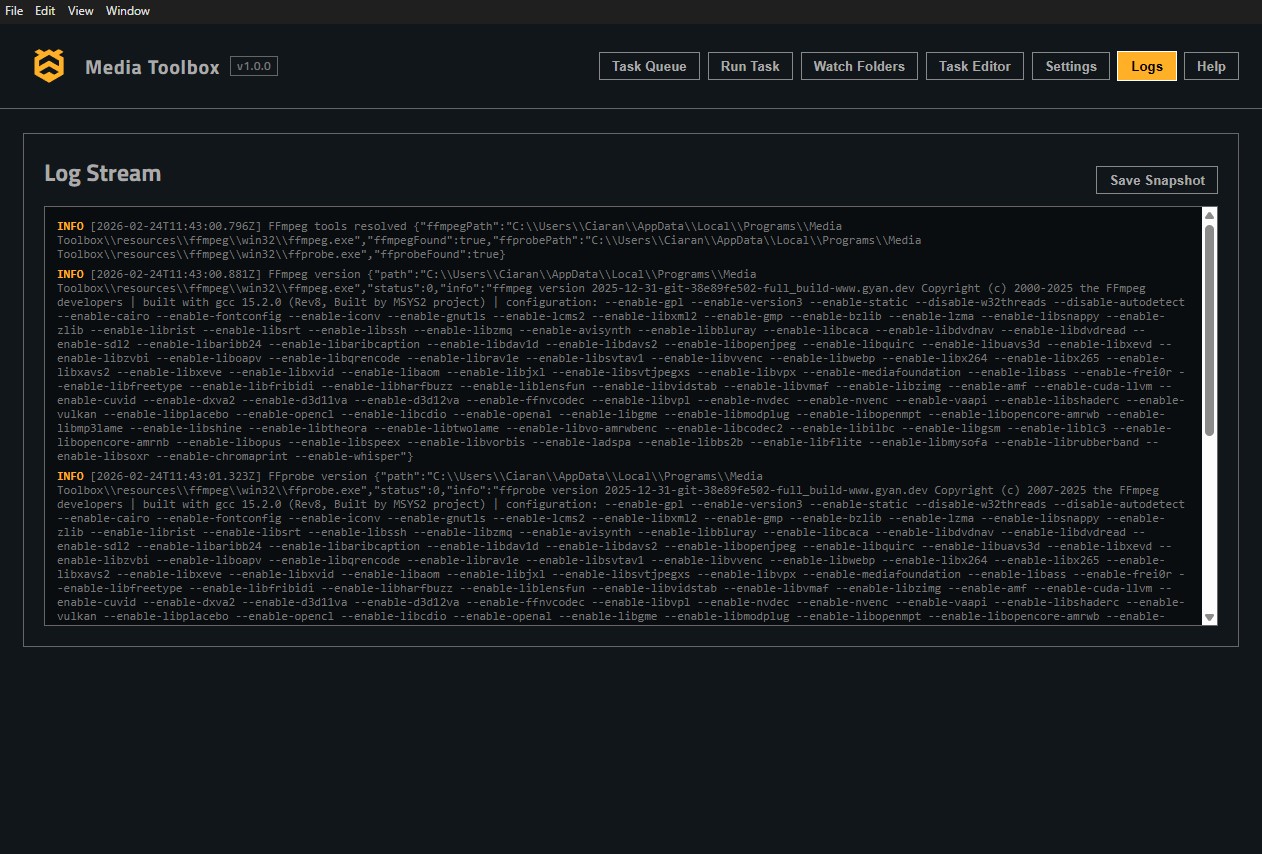
Logs show live output from running tasks and system events.
Common actions:
- Save Logs: Write a snapshot file for support or audits.
- Clear Logs: Remove visible log lines (does not delete log files on disk).
Settings
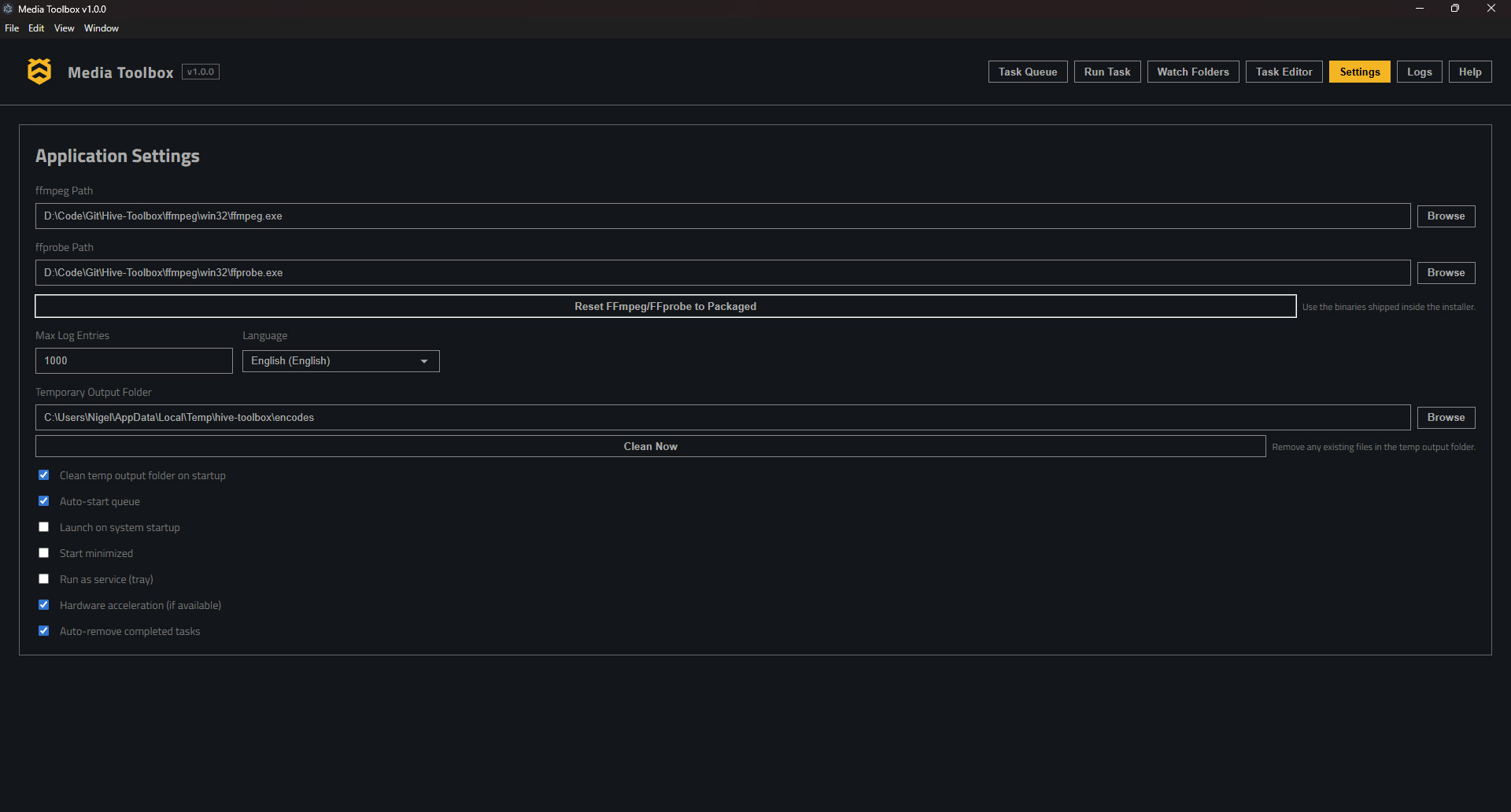
Settings control app behavior, paths, and performance.
Common actions:
- Browse: Pick a file or folder path.
- Reset to Packaged: Use the bundled FFmpeg tools.
- Save: Apply setting changes.
Running Tasks
Use the Tasks screen for one-off processing.
Step-by-step:
- Open Tasks.
- In Template, select a template.
- Click Add Files and select files.
- (Optional) Set an output folder if the template supports it.
- Review template options (bitrate, delete source, verification).
- Click Run.
- If Auto Start is off, click Resume Queue.
- Select a task to view details and logs.
Notes:
- Each file becomes its own task in the queue.
- You can drag and drop files directly into the task list.
- You can queue tasks while others are running.
Task Templates
Templates define input, output, and processing rules. Each template belongs to a type. The template editor displays fields based on the selected type.
Common template fields:
- Name: Label shown in the template list.
- Description: Short summary shown in the UI.
- Output Folder: Where outputs are written (if applicable).
- Delete Source on Success: Remove the original file after success.
- Verify Output: Run FFprobe to validate output properties.
Transcode
Encodes a file using FFmpeg.
Typical options:
- Output Folder: Where the encoded file is saved.
- Container/Extension: Target extension (for example, .mp4).
- Bitrate: Target bitrate for video and/or audio.
- Bit Depth: Output bit depth (if supported by the codec).
- Hardware Acceleration: Prefer GPU encoders when available.
- Delete Source on Success: Remove original after a successful encode.
- Verify Output: Run FFprobe and log basic details.
Step-by-step:
- Create or duplicate a Transcode template.
- Set a Name and Output Folder.
- Choose output settings (container, bitrate, bit depth).
- Enable Hardware Acceleration if desired.
- Save the template.
- Apply the template to files in Tasks and click Run.
Segment
Splits a video into regions or segments and encodes each output.
Typical options:
- Regions: One or more crop regions.
- Coordinates: Pixel or normalized (0-1) coordinates.
- Output Pattern: File naming pattern for each segment.
- Delete Source on Success: Ignored when multiple outputs are created.
Step-by-step:
- Create or duplicate a Segment template.
- Add regions with coordinates (pixel or normalized).
- Set an output pattern so each segment is uniquely named.
- Save the template.
- Run from Tasks.
Distribute
Copies a file to Hive player targets.
Typical options:
- Target Rules: Rules that map filename patterns to targets.
- Multicast: Broadcast once to multiple targets (if supported).
- Replace Index: Overwrite a numbered slot when filenames start with a number.
Step-by-step:
- Create or duplicate a Distribute template.
- Add one or more Target Rules (pattern + target list).
- Enable Multicast if you want broadcast behavior.
- Enable Replace Index if you use numbered filenames.
- Save the template.
- Apply the template to files or use it in a pipeline.
Delete File (Pipeline Only)
Deletes the original source file after upstream tasks complete.
Step-by-step:
- Add Delete File as the last step in a watch folder pipeline.
- Confirm it is after any steps that require the source file.
- Enable the watch folder.
Get File Info
Runs FFprobe and writes media details to the log.
Step-by-step:
- Create or duplicate a Get File Info template.
- Run it from Tasks or in a pipeline.
- Review the log output for media details.
Advanced FFmpeg Args
Custom templates can include a JSON array of FFmpeg arguments.
Usage tips:
- Use when you need full control of FFmpeg flags.
- Validate the arguments on a sample file first.
- Keep the JSON array in the order FFmpeg expects.
Watch Folders and Pipelines
Watch folders continuously scan for files and queue workflows automatically.
How it works:
- Choose a folder.
- Add pipeline steps (templates).
- Set Stability Seconds (how long a file must stay unchanged).
- Enable the watch folder.
Step-by-step:
- Open Watch Folders.
- Click New Watch Folder.
- Select a Path to monitor.
- Add pipeline steps in the desired order (for example, Transcode -> Distribute -> Delete File).
- Set Stability Seconds to a value that fits your ingest speed.
- Click Save and toggle Enabled.
Pipeline behavior:
- Each step receives the output of the previous step.
- If a step fails, downstream steps do not run.
- If a file changes after being processed, it can be re-queued once it stabilizes again.
Tips:
- Use Distribute -> Delete File to push media to players and then remove the source file.
- For multi-step pipelines, verify each template works before chaining.
Distribution (Hive Players)
The Distribute template sends files to one or more targets.
Target Rules
Rules match on filename suffix and specify where to send files.
Example rule:
- Pattern:
_gallery.mp4 - Targets:
10.0.0.20,10.0.0.21
Behavior:
- If multiple rules match, all targets are combined.
- If no rule matches, the file is not sent.
Step-by-step:
- Open the Distribute template.
- Add a rule with a filename pattern.
- Add one or more targets to the rule.
- Save the template and test with a sample file.
Multicast Broadcast
When enabled, the app can use a multicast sender to broadcast once to multiple targets.
Notes:
- Requires multiple targets.
- Not available on macOS.
- Falls back to individual uploads when multicast cannot be used.
- If rules produce different output filenames per target, multicast is skipped (multicast requires one shared output filename).
Replace Index
When enabled, a filename that starts with a number is treated as a slot index.
Example:
0150_bees.mp4targets slot 150.
Use this to overwrite existing media on players by slot number.
Logs and Snapshots
The Logs view streams live logs from the server.
Step-by-step:
- Open Logs.
- Scroll to see recent activity.
- Click Save Logs to write a snapshot file.
- Share the saved file with support if needed.
Storage:
- Logs are stored in the app data folder under
logs/.
Settings
Key settings you can adjust:
FFmpeg and FFprobe Paths
Use the bundled tools or point to custom installs.
Step-by-step:
- Open Settings.
- In FFmpeg Path and FFprobe Path, click Browse.
- Select the executable files.
- Click Save.
Max Log Entries
Controls how many log lines are kept in memory.
Step-by-step:
- Open Settings.
- Set Max Log Entries.
- Click Save.
Auto Start
Automatically start queued tasks.
Step-by-step:
- Open Settings.
- Toggle Auto Start.
- Click Save.
Auto Launch
Start the app when you log in.
Step-by-step:
- Open Settings.
- Toggle Auto Launch.
- Click Save.
Start Minimized
Open the app minimized.
Step-by-step:
- Open Settings.
- Toggle Start Minimized.
- Click Save.
Temp Output Folder
Where temporary outputs are stored.
Step-by-step:
- Open Settings.
- Set Temp Output Folder.
- Click Save.
Clean Temp On Startup
Remove temp outputs on launch.
Step-by-step:
- Open Settings.
- Toggle Clean Temp On Startup.
- Click Save.
Hardware Acceleration
Enable hardware encoders when available.
Step-by-step:
- Open Settings.
- Toggle Hardware Acceleration.
- Click Save.
Auto Remove Completed
Hide completed tasks from the queue list.
Step-by-step:
- Open Settings.
- Toggle Auto Remove Completed.
- Click Save.
Projects (Save/Open)
The desktop app can save and load full project snapshots.
Save Project
Step-by-step:
- Click File -> Save Project.
- Choose a location and filename.
- Click Save to write a
.htpproject file.
Open Project
Step-by-step:
- Click File -> Open Project.
- Select a
.htpfile. - Click Open to restore templates, watch folders, tasks, and settings.
Troubleshooting
FFmpeg not found
- Open Settings and set FFmpeg/FFprobe paths.
- Use Reset to Packaged if you want bundled defaults.
Watch folder not triggering
- Verify the folder path is correct.
- Ensure the file is stable longer than the Stability Seconds value.
- Confirm the watch folder is enabled and has at least one pipeline step.
- Click Run Now to test the watcher.
Distribution failures
- Check that target IPs/URLs are reachable.
- Confirm any firewall rules allow uploads.
- If multicast fails on macOS, use standard upload targets.
- Verify filename patterns match the target rules.
Delete File step not working
- Place Delete File as the last pipeline step.
- Ensure the source file is not locked by another process.
Logs too noisy or too short
- Increase Max Log Entries.
- Save a log snapshot before clearing.