Backup & Restore
Hive provides you with a way of automatically backing up and restoring your Hive device to a networked storage device. This is done automatically based on the ip address of your device.
When backing up, the Hive settings and media have been separated. You can choose separate folders for the Hive settings and the media.
This feature should only be used with version 1.2.95 or higher. For a guide on the older backup method see here
Find Devices
In order to backup your devices, you must first find them on the network. By going to the find devices page you can see a list of all devices on the network and their ip addresses.
To access the Find Devices page, Click on the Hive logo in the top left corner of the page.
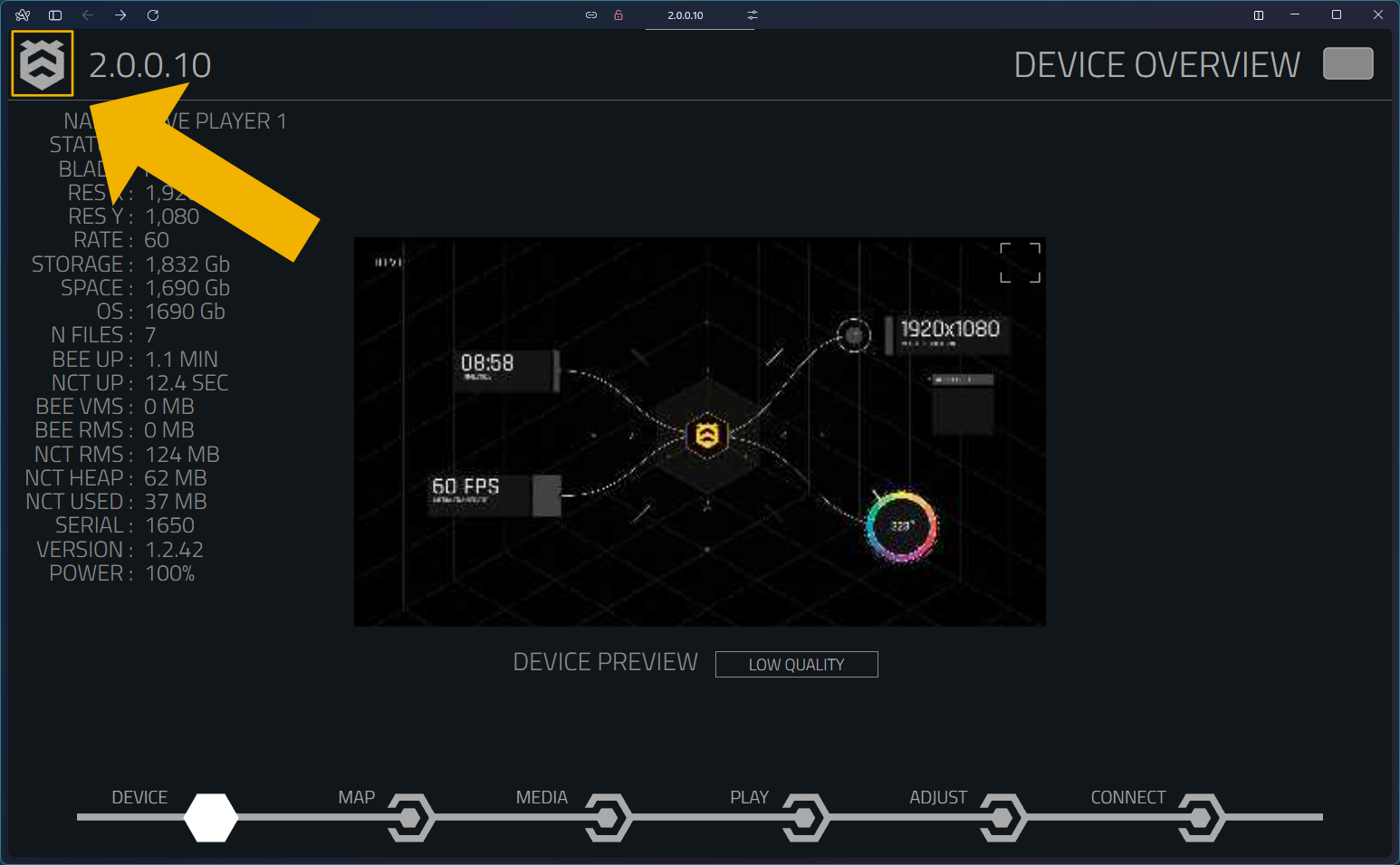
Then make sure you click on the BACKUP | RESTORE tab on the bottom to get to the backup page.
Settings
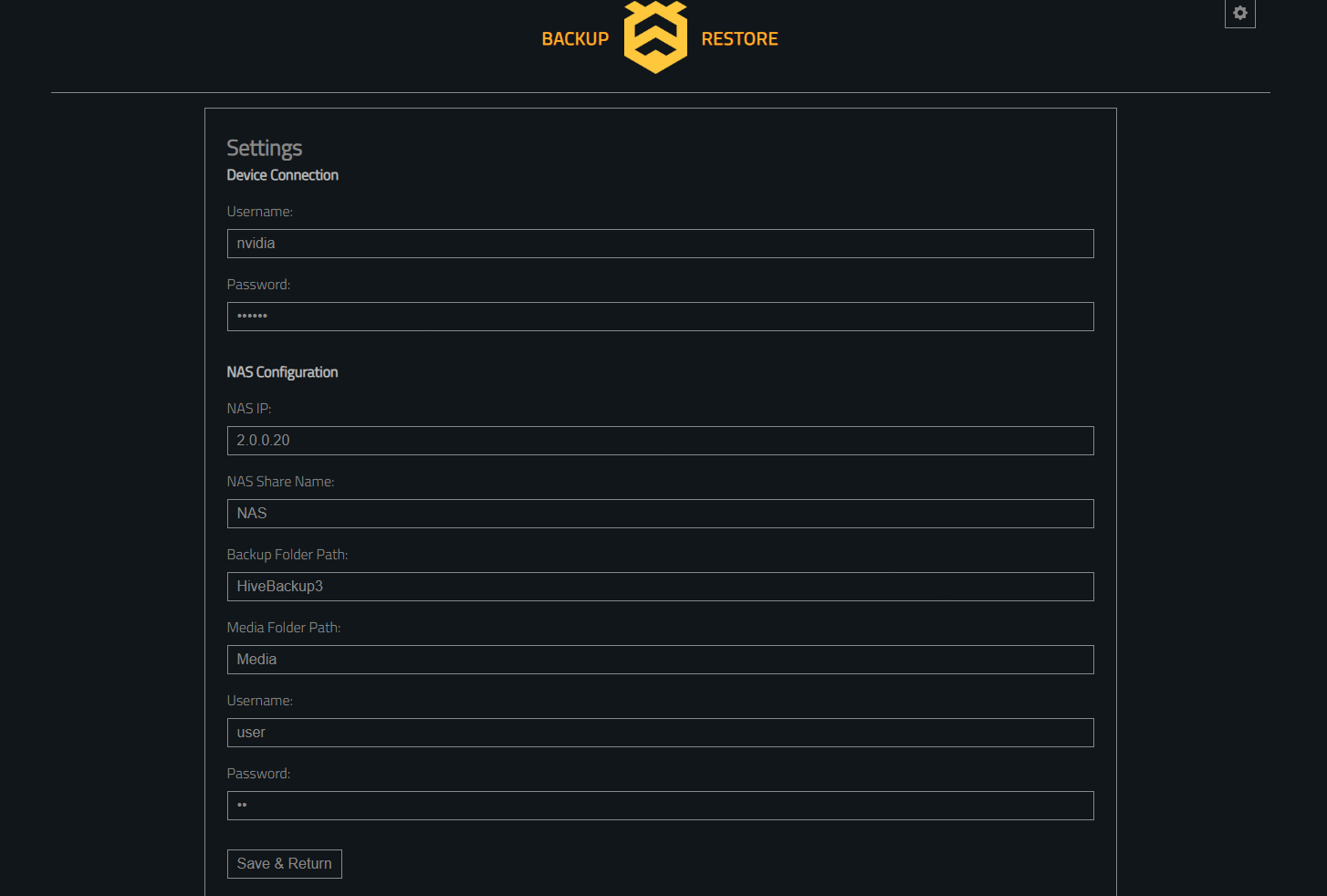
You will first need to configure the backup/restore settings for your NAS. This is done by clicking on the cog button in the top right hand corner. It will change the ui to global settings for the network.
When you save these settings, it is stored in your browser's cache. So you won't need to do this for every device.
Device Connection
Username - The username for the hive device. Defaults to nvidia.
Password - The password for the hive device. Default is setup.
NAS Configuration
NAS IP - The ip of the nas.
NAS Share Name - The name of the share.
Backup folder path - The name of the folder to backup the Hive Settings. Subfolders are supported, for example backup/Hive
Media folder path - The name of the folder to backup the Media. Subflders are supported, fore example backup/Media
Username - The username for the NAS.
Password - The password for the NAS.
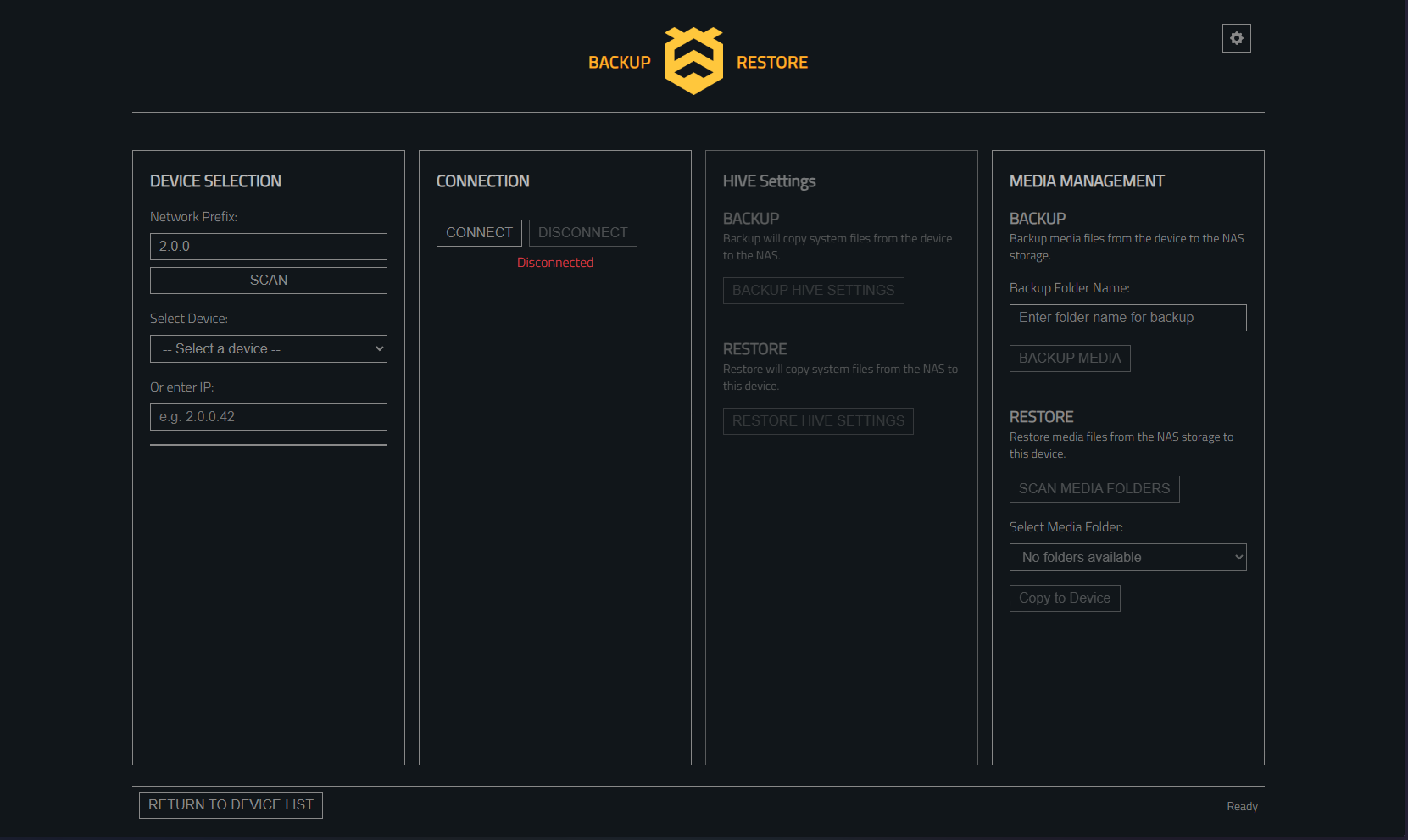
Device Selection
Here you can scan for a list of devices based on a network prefix. For example the prefix could be 192.168.1 or 2.0.0. The scanner will look for hive devices in the range of that ip address.
Once finished the devices will be listed in the drop down.
Alternatively you can type the ip address of a device in manually if you know what ip you would like to connect to.
Connection
Here you can connect and disconnect from a device. You must connect before you can perform any of the backup/restore operations.
HIVE Settings
Backup
Pressing the backup button will perform a full backup. The tool will copy files from the Hive device to the NAS and will put the files in the Backup folder path specified. A new directory will be created with the ip of the Hive device that you are connected to.
Restore
Pressing the restore button will restore the settings from the NAS to the Hive device. The Hive device will restart once this has been completed.
This is the reverse operation of the Backup
Media Management
The media managment is a little more complicated. All of the media can be backed up to a specified folder within the Media folder. This allows for you to arrange media across multiple Hive devices.
Backup
In order to backup the media, you must first specify a folder name. Then all the media from the Hive device will be copied into a new folder on the NAS inside of the Media folder specified.
Restore
You can restore media from the NAS but first you need to select a folder. You do this by pressing the SCAN MEDIA FOLDERS button. This will find all folders inside the Media folder and allow you to choose which one to restore to your Hive device.